Windows XP Windows 7 Windows 2003 Windows Vista Windows 綜合教學 Linux 系統教學
Windows 10 Windows 8 Windows 2008 Windows NT Windows Server 電腦軟體教學
您现在的位置: Windows教程網 >> Windows教程 >  >> 電腦軟體教學 >> 系統工具

Daemon Tools 4.03 安裝報 SPTD 與核心除錯器衝突?安全模式手動註冊 SPTD 完美解決

編輯:系統工具

錯誤現象

安裝 Daemon Tools 4.03 彈出:
「This program will install SCSI Pass Through Direct (SPTD) layer... WARNING - SPTD is not compatible with kernel mode debuggers (SoftICE, WinDBG etc.)! Please cancel setup if you plan to use kernel debugger on this machine.」

選「取消」安裝中止;選「確定」後續仍報錯、USB 失效、系統不穩。

原因分析

SPTD 驅動與核心除錯器不相容。系統若載入過 SPTD(舊版殘留、安全模式自動載入),安裝程式偵測到衝突。官方論壇建議:安全模式安裝、或改用 4.03 版(實測無效)。

實測成功方案(安全模式手動註冊 SPTD)

  1. 刪除舊驅動檔:
    C:\Windows\System32\Drivers\dtscsi.sys(關鍵!不刪無法安裝 SPTD)。
  2. 下載 SPTD 獨立安裝包:
    32位:sptdinst_x86.exe;64位:sptdinst_x64.exe。放在 C: 或 D: 根目錄。
  3. 進入安全模式:重開機連按 F8 → 選「安全模式」。
  4. CMD 手動註冊 SPTD:
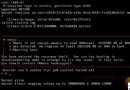
    cmd → D: → sptdinst_x86.exe add
    若彈出相同警告視窗,**仍點「是」**。隨後提示 You need to reboot... 點確定。
  5. 正常模式安裝 Daemon Tools 4.03:
    重開機進正常模式 → 執行 DT 4.03 安裝程式 → **不再報錯** → 安裝完成 → 托盤出現圖示、USB 正常、其他程式無異常。

官方替代方案(BSOD/無法開機時)

  1. 安全模式開機時按 Esc 取消載入 SPTD.sys。
  2. 重命名/刪除 C:\Windows\System32\Drivers\sptd.sys。
  3. 正常開機驗證問題解決後,再將 sptd.sys 改回原名或用 sptdinst.exe remove 移除。

避坑建議

  • Daemon Tools 4.x SPTD 問題頻發,建議退回 3.47 版 或改用 Virtual CloneDrive、WinCDEmu、gcdemu 等無 SPTD 依賴的輕量虛擬光碟機。
  • 安裝前務必用官方 sptdinst.exe remove 清理舊版 SPTD。
Copyright © Windows教程網 All Rights Reserved