Windows 8 在複製檔案完成後,仍需進行一系列準備工作才能正式進入系統。安裝程式會顯示「正在為新作業系統做準備」畫面,隨後引導使用者完成隱私設定、個人化選項等必要配置。
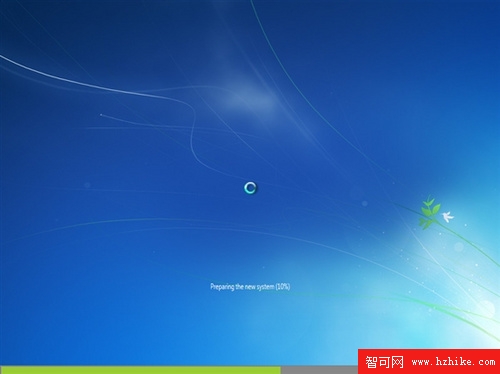
正在為新作業系統做準備
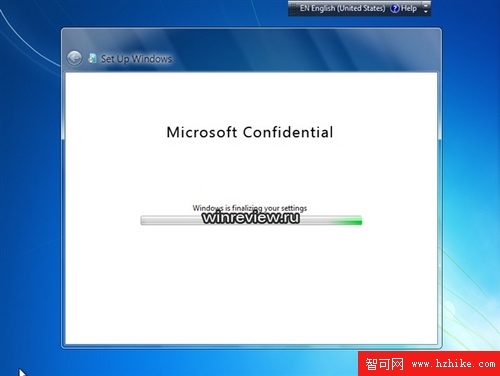
隱私與個人化等必要設定
設定完成後會出現一個全黑畫面,實際上是提示使用者重新啟動以進入全新的 Windows 8 環境。
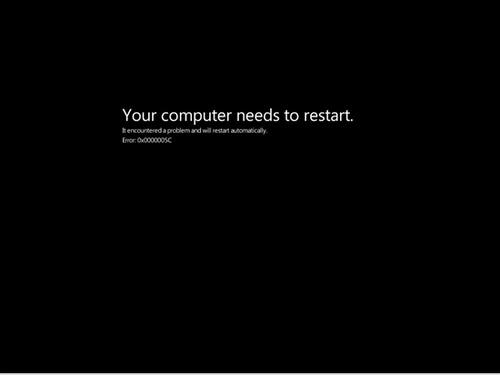
提示重新啟動的黑色畫面
重啟後即可見到 Windows 8 全新介面。預設搭載 IE 9 瀏覽器,右下角整合 Windows Live 用戶頭像,整體佈局與 Windows 7 差異不大,但已為後續的 Modern UI 奠定基礎。
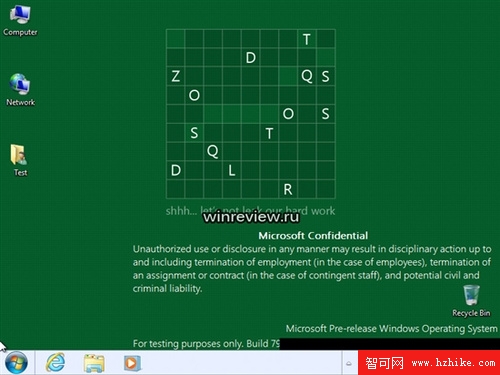
Windows 8 系統桌面

與 Windows Live 高度整合
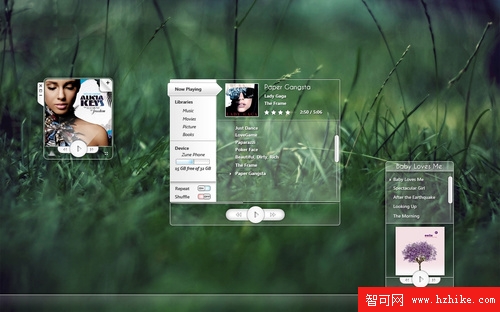
Windows 8 系統下的 Media Player 播放視窗
此版本為早期測試版(Milestone 3),非最終正式版,但安裝流程應與正式版相近。微軟已開始向 OEM 合作夥伴分發 Build 7971 等早期版本,正式版發布仍需時日。想搶先體驗的讀者可關注微軟 Connect 官網獲取測試版下載資訊。