Win7 檔案總管預設隱藏受保護系統檔案與一般隱藏檔案。若需查看隱藏檔案 (如 autorun.inf、desktop.ini、應用程式設定檔),需調整資料夾選項。本文提供最精簡步驟。

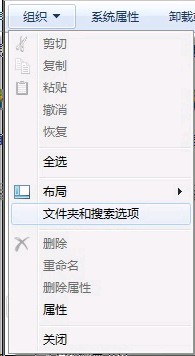
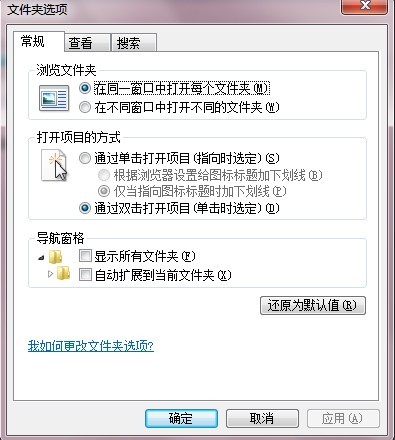
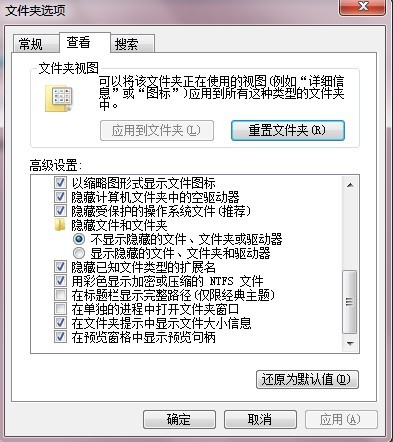
attrib -h -s -r /s /d *.* (在目標目錄執行,遞歸移除隱藏/系統/唯讀屬性)Get-ChildItem -Force (顯示含隱藏項目),Set-ItemProperty -Path . -Name Attributes -Value ([IO.FileAttributes]::Normal) 移除屬性。pagefile.sys、hiberfil.sys、bootmgr) 移除隱藏/系統屬性可能導致開機失效,勿隨意操作。dir /a 或防毒掃描可發現可疑檔案。升級 Win10 10586 後桌面圖標閃爍不停?重置預設應用一招解決
Windows XP SP3 桌面圖示出現底色陰影?三步驟徹底移除恢復透明標籤
Windows 10 預覽版如何設定多螢幕顯示?Win+P 快捷鍵與顯示卡控制台雙法
Windows 環境變數完整表 (XP/Win7/Win8) 與實用範例:%HOMEPATH%、%TEMP%、%APPDATA% 善用加速操作
Win8 升級 Win8.1 失敗錯誤 0x80070006-0x2000c?乾淨啟動法排除干擾
Win8.1 點擊「立即升級 Win10」閃退?卸載殺毒軟體、清除 SoftwareDistribution 快取重試