Windows XP Windows 7 Windows 2003 Windows Vista Windows 綜合教學 Linux 系統教學
Windows 10 Windows 8 Windows 2008 Windows NT Windows Server 電腦軟體教學
您现在的位置: Windows教程網 >> Windows教程 >  >> Windows 綜合教學 >> 關於 Windows

Windows 7 使用 SFC 掃描修復系統檔案:指令 sfc /scannow 完整操作教學

編輯:關於 Windows

Windows 7 內建系統檔案檢查器(SFC),可掃描所有受保護系統檔案並自動以正確版本替換損毀/遺失檔案。當系統出現不明錯誤、功能異常、藍畫面懷疑系統檔受損時,可執行 sfc /scannow 修復。

什麼是 SFC

System File Checker,系統檔案檢查器,驗證 Windows 系統檔案完整性並自動修復。

操作步驟

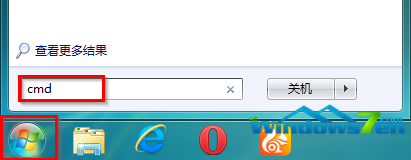
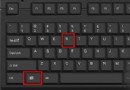
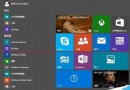
  1. 按 Win 鍵 → 輸入 cmd → 右鍵「命令提示字元」→ 選擇「以系統管理員身分執行」。
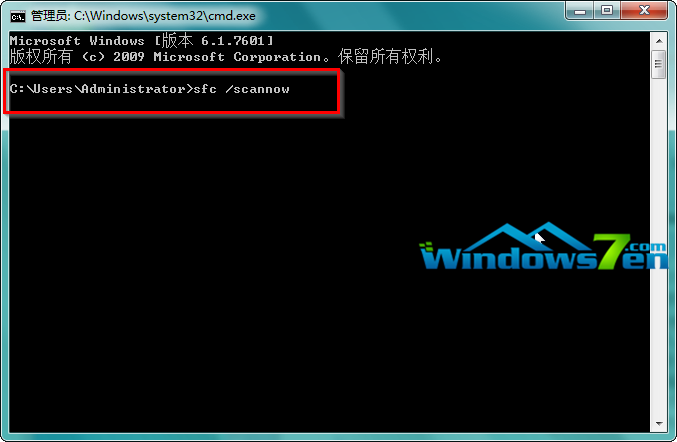
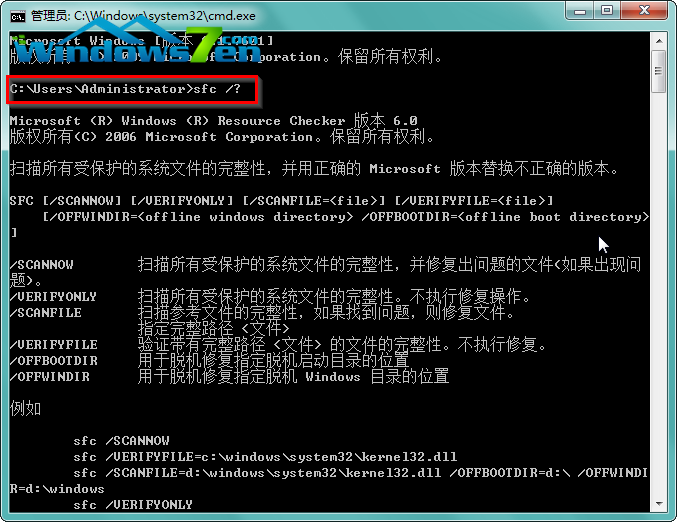
  2. 在視窗中輸入 sfc /scannow 按 Enter。
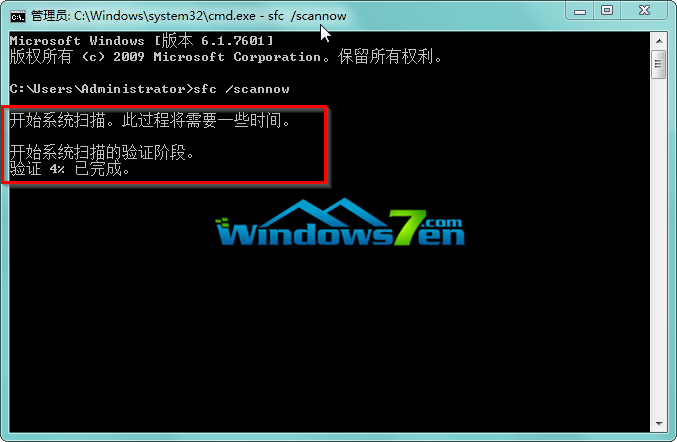
  3. 等待掃描進度條跑至 100%(需數分鐘),系統自動修復發現的問題。
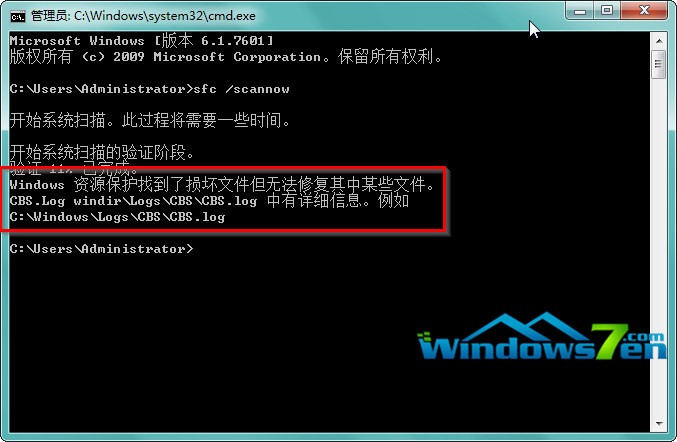
  4. 完成後顯示結果:
    「Windows Resource Protection 找到損毀檔案並成功修復」→ 修復成功。
    「找到損毀檔案但無法修復」→ 需進一步處理(查看 CBS.log、DISM 修復、重新安裝)。
    「未找到完整性違規」→ 系統檔案正常。

開啟 CMD
輸入 sfc 指令
掃描進行中
掃描結果
其他 sfc 參數

常用 SFC 參數

進階修復:DISM 指令

若 SFC 無法修復,請以系統管理員身分執行:
DISM /Online /Cleanup-Image /RestoreHealth
修復 Windows 元件存放區,再重新執行 sfc /scannow。

Copyright © Windows教程網 All Rights Reserved
參數功能
sfc /scannow掃描所有受保護系統檔案並修復(最常用)
sfc /verifyonly僅掃描驗證,不修復
sfc /scanfile=<路徑>掃描並修復指定檔案
sfc /offbootdir=<路徑> /offwindir=<路徑>離線修復(WinPE 環境修復無法開機的系統)