Windows 10 Technical Preview 預設啟用全新「開始選單」,若偏好 Windows 8 風格全螢幕「開始畫面」,只需在工作列屬性中切換即可。
切換步驟
- 右鍵工作列空白處 → 「內容」。
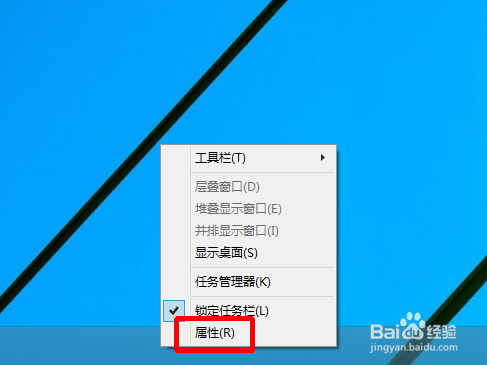
- 切換「開始選單」索引標籤。
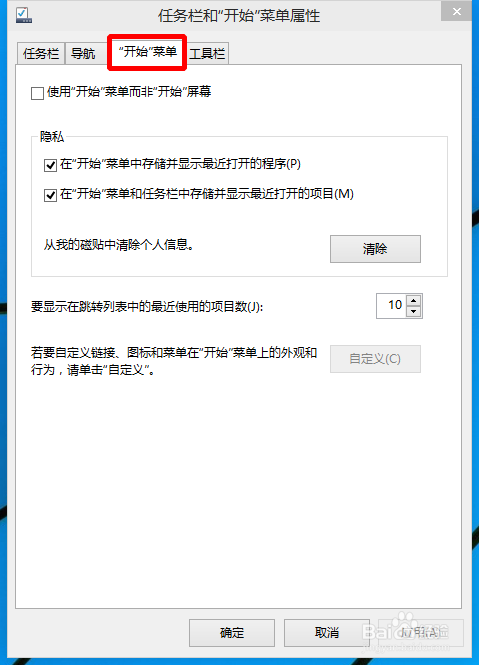
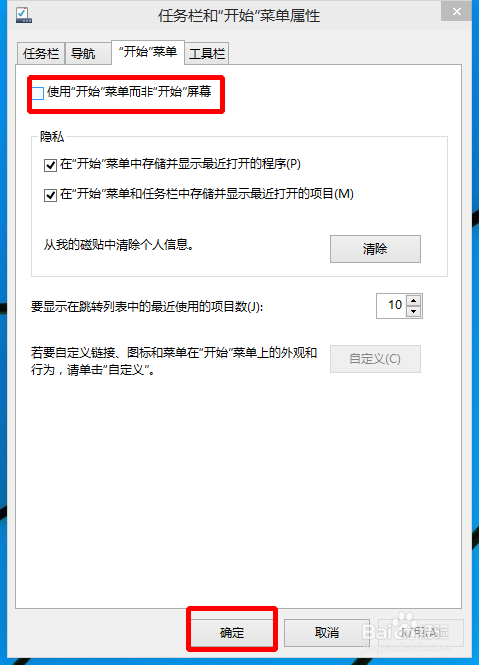
- 取消勾選「使用開始選單而非開始畫面」→ 確定。
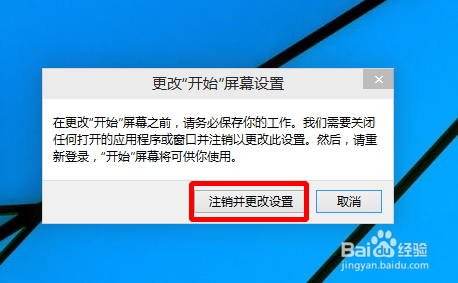
- 彈出提示 → 點擊「登出並儲存設定」。
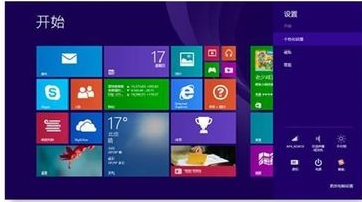
- 重新登入後,點擊開始鈕即進入全螢幕開始畫面。
補充說明
- 此設定為使用者層級,不影響其他帳號。
- 正式版 Windows 10 移除此選項,開始選單為唯一模式 (但可透過登錄檔/第三方工具模擬開始畫面)。
- 平板模式下系統自動切換類似開始畫面的全螢幕體驗。
此功能讓習慣 Windows 8 開始畫面的使用者在預覽版中平滑過渡。