Windows XP Windows 7 Windows 2003 Windows Vista Windows 綜合教學 Linux 系統教學
Windows 10 Windows 8 Windows 2008 Windows NT Windows Server 電腦軟體教學
您现在的位置: Windows教程網 >> Windows教程 >  >> Windows 綜合教學 >> 關於 Windows

Windows 10 Build 9879 解鎖搜尋列功能:修改登錄啟用任務列搜尋框

編輯:關於 Windows

Windows 10 Build 9879 將搜尋按鈕升級為搜尋列,但預設被鎖定隱藏。修改登錄檔 EnableSearchBox 即可解鎖,右鍵任務列即可顯示/隱藏搜尋框與圖示。

解鎖步驟

  1. Win+R → regedit 開啟登錄編輯器。
  2. 定位至:HKEY_LOCAL_MACHINE\SOFTWARE\Microsoft\Windows\CurrentVersion\Search
    (若無 Search 索引鍵,在 CurrentVersion 右鍵新建 → 索引鍵 → 命名 Search)。
  3. 右鍵右側空白 → 新建 → DWORD (32 位元) 值 → 命名 EnableSearchBox。
  4. 雙擊 EnableSearchBox → 數值資料設為 1 (十六進位/十進位皆可) → 確定。
  5. 登出重登,或重新啟動 explorer.exe (工作管理員 → 細節 → 右鍵 explorer.exe → 重新啟動)。
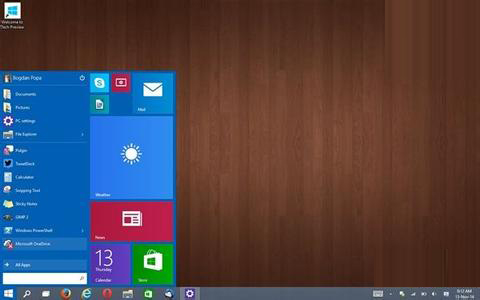
  6. 右鍵任務列 → 「搜尋」即可選擇「隱藏/顯示搜尋圖示/顯示搜尋框」。

效果說明

  • 搜尋框常駐任務列,輸入即時搜尋檔案/應用/設定/網頁。
  • 搜尋圖示模式:點擊圖示展開輸入介面。
  • 完全隱藏:極簡任務列風格。

此為 Build 9879 隱藏功能,正式版預設啟用搜尋框,無需手動解鎖。

Copyright © Windows教程網 All Rights Reserved