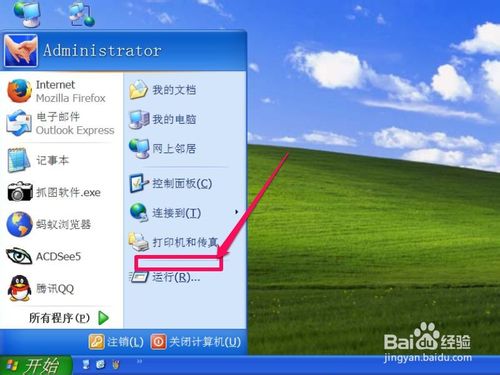
Windows XP 開始選單的「搜尋」功能若消失,通常是被優化工具或 Ghost 系統移除/停用。本文提供三階段遞進式恢復方案。
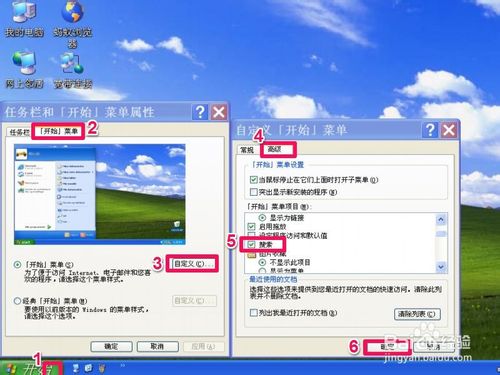
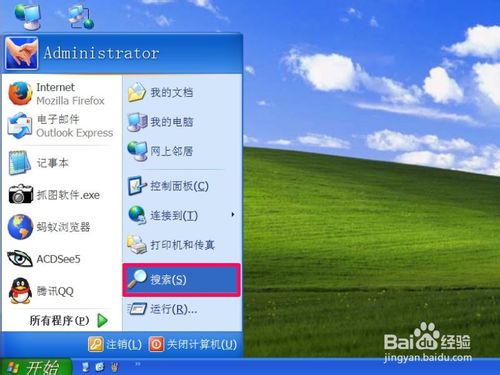
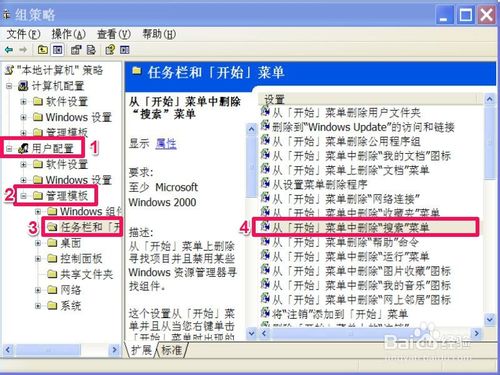
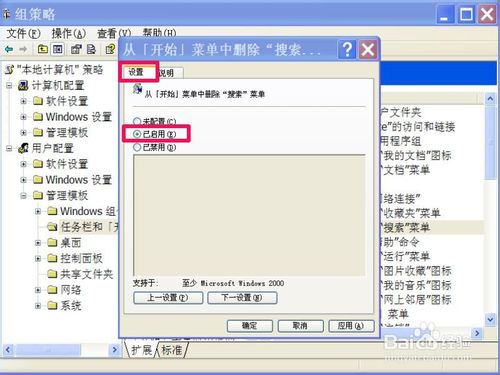
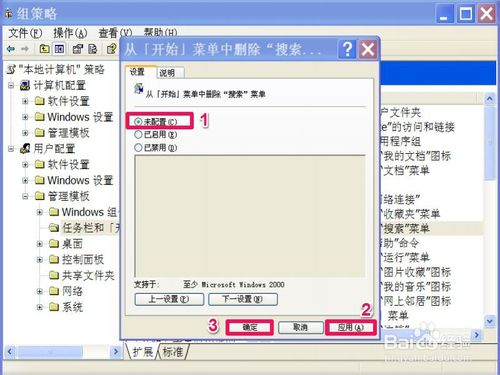
gpedit.msc 開啟群組原則編輯器。使用者設定 → 系統管理範本 → 開始功能表和工作列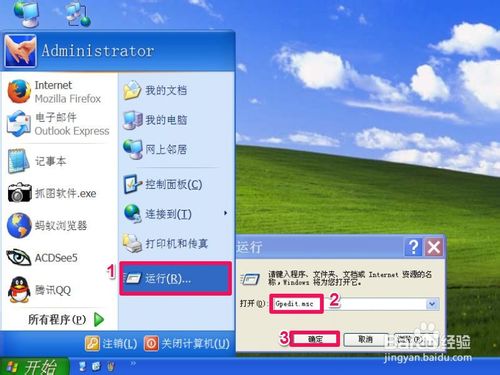
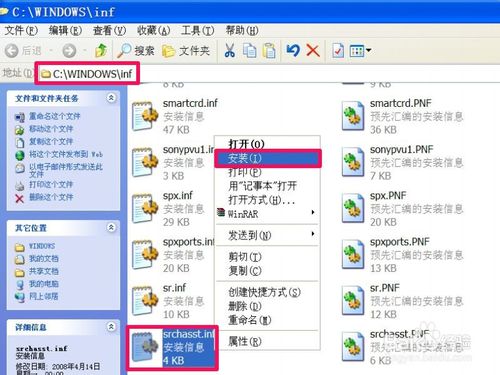
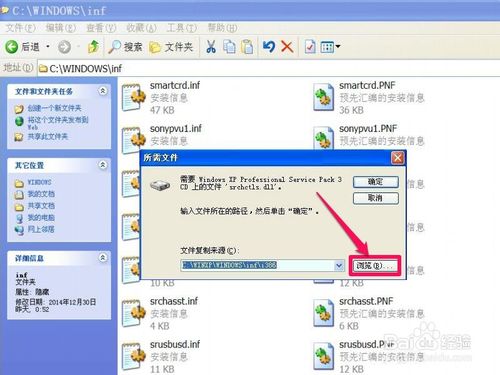
%systemroot%\inf 開啟 INF 資料夾。srchasst.inf,右鍵 →「安裝」。C:\Windows\System32 同名檔案繼續安裝。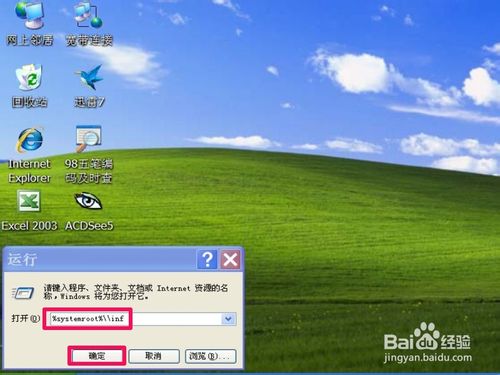
Win10 Mobile RS2 14943 上手影片曝光:Edge 新版本分數 445,明顯變化較少
Win10 網路圖示顯示驚嘆號但 Wi-Fi 正常?三種快速修復網路連線方案
Windows 10 週年更新 1607 ISO 映像檔下載大全 (含安裝金鑰)
Win10 通用應用程式圖示/名稱顯示亂碼?PowerShell 重新註冊 AppX 套件修復
Win7 使用 Print Screen 全螢幕截圖失敗黑屏?修改登錄表 DCI Timeout 值為 0 即可修復
Win8 IE10 收藏夾漫遊功能設定:切換 Microsoft 帳戶、開啟同步開關、雲端即時同步收藏網址