Windows XP Windows 7 Windows 2003 Windows Vista Windows 綜合教學 Linux 系統教學
Windows 10 Windows 8 Windows 2008 Windows NT Windows Server 電腦軟體教學
您现在的位置: Windows教程網 >> Windows教程 >  >> Windows 綜合教學 >> 關於 Windows

Win10 通用應用程式圖示/名稱顯示亂碼?PowerShell 重新註冊 AppX 套件修復

編輯:關於 Windows

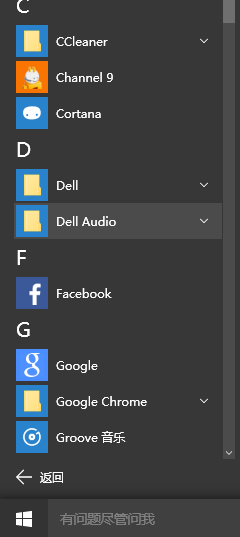
Windows 10 通用應用 (UWP) 若出現圖示空白、名稱亂碼、無法啟動,通常是 AppX 套件註冊資訊損壞。透過 PowerShell 重新註冊所有 AppX 套件可一鍵修復,無需重裝系統。
修復步驟

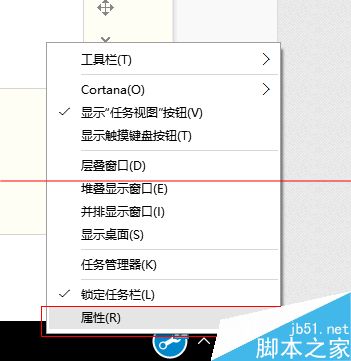
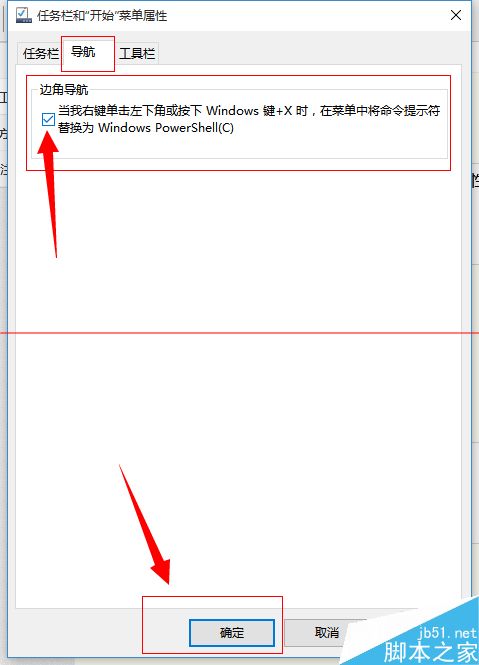
  1. 工作列空白處右鍵 → 「屬性」→ 「導覽」分頁 → 勾選「當我右鍵點擊開始按鈕時顯示 Windows PowerShell」→ 確定。
    工作列屬性啟用PowerShell
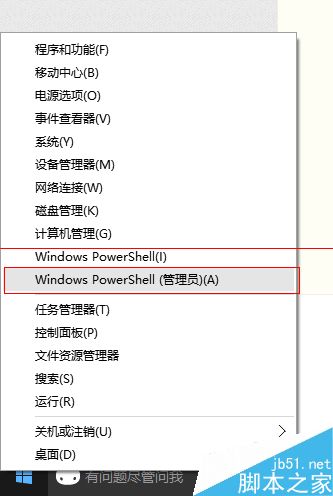
  2. 右鍵「開始」按鈕 → 選擇「Windows PowerShell (系統管理員)」。
    開啟PowerShell管理員
    PowerShell管理員視窗
  3. 修復 Microsoft Store (應用商店) 問題:在 PowerShell 執行:
    $manifest = (Get-AppxPackage Microsoft.WindowsStore).InstallLocation + '\AppxManifest.xml' ; Add-AppxPackage -DisableDevelopmentMode -Register $manifest
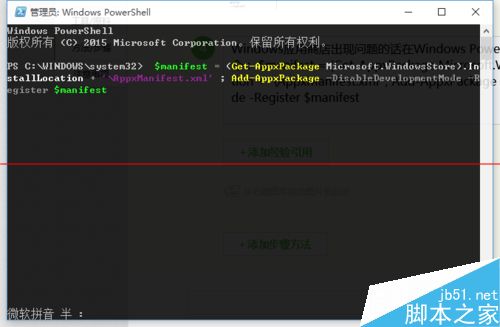

    等待完成。
    修復Store指令
    修復Store完成
  4. 修復所有通用應用程式問題:在 PowerShell 執行:
    Get-AppXPackage -AllUsers | Foreach {Add-AppxPackage -DisableDevelopmentMode -Register "$($_.InstallLocation)\AppXManifest.xml"}
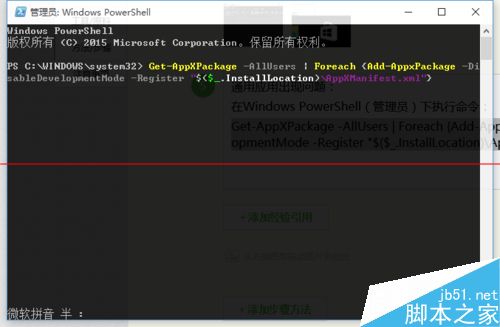
    等待完成 (可能需數分鐘)。
    修復所有App指令
    修復所有App完成
  5. 若修復後圖示仍異常,請重新啟動電腦。

前提:PowerShell 必須以系統管理員權限執行。此法修復註冊資訊,不影響使用者資料與已安裝應用內容。

Copyright © Windows教程網 All Rights Reserved