Windows XP Windows 7 Windows 2003 Windows Vista Windows 綜合教學 Linux 系統教學
Windows 10 Windows 8 Windows 2008 Windows NT Windows Server 電腦軟體教學
您现在的位置: Windows教程網 >> Windows教程 >  >> Windows 綜合教學 >> 關於 Windows

Win7 如何新增「列印目錄」右鍵功能?Printdir.bat + SendTo 選單一鍵列印資料夾清單

編輯:關於 Windows

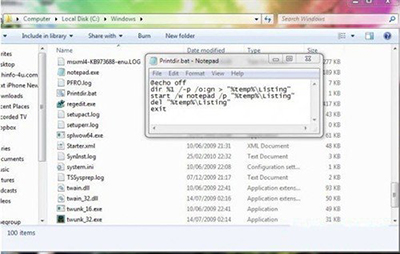
Win7 原生右鍵選單無「列印目錄」功能,透過建立批次檔 Printdir.bat 並放入 SendTo 選單,即可在任意資料夾右鍵 → 傳送給 → 列印目錄,自動以記事本開啟目錄清單並送列印。

建立 Printdir.bat

  1. 新建文字文件,貼入以下內容並存為 Printdir.bat:
@echo off
dir %1 /-p /o:gn > "%temp%\Listing"
start /w notepad /p "%temp%\Listing"
del "%temp%\Listing"
exit
  1. 以管理員身分將 Printdir.bat 複製至 C:\Windows (需管理員權限)。

加入 SendTo 選單

  1. 按 Win + R 輸入 shell:sendto 開啟 SendTo 資料夾。
  2. 右鍵空白處 → 新增 → 捷徑。
  3. 項目位置輸入:%windir%\Printdir.bat,下一步。
  4. 命名為 列印目錄清單,完成。

Printdir.bat 內容與 SendTo 捷徑

使用方式

  1. 在任意資料夾空白處右鍵 → 傳送給 → 列印目錄清單。
  2. 記事本自動開啟目錄清單並彈出列印對話框,選擇印表機列印即可。

原理說明

  • dir %1 /-p /o:gn:列出目標資料夾 (%1) 內容,依群組/名稱排序,不分頁。
  • start /w notepad /p:以列印模式開啟記事本,/w 等待列印完成再關閉。
  • 臨時檔 %temp%\Listing 列印後自動刪除。

進階擴充

  • 修改 dir 參數可自訂輸出格式 (如 /s 遞迴子目錄、/q 顯示擁有者)。
  • 搭配 tree 指令可輸出樹狀結構。
Copyright © Windows教程網 All Rights Reserved