Windows XP Windows 7 Windows 2003 Windows Vista Windows 綜合教學 Linux 系統教學
Windows 10 Windows 8 Windows 2008 Windows NT Windows Server 電腦軟體教學
您现在的位置: Windows教程網 >> Windows教程 >  >> Windows 綜合教學 >> 關於 Windows

Windows 如何遠端登入 Linux 桌面?TigerVNC 完整教學

編輯:關於 Windows

SSH 僅提供命令列,若需圖形化遠端 Linux 桌面,可使用開源免費的 TigerVNC。以下為 Windows 端安裝與 Linux 端設定完整步驟:
Windows 端:安裝 TigerVNC Viewer

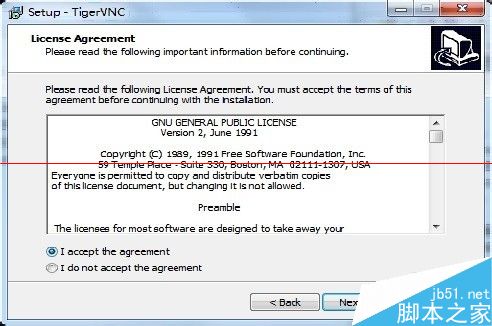
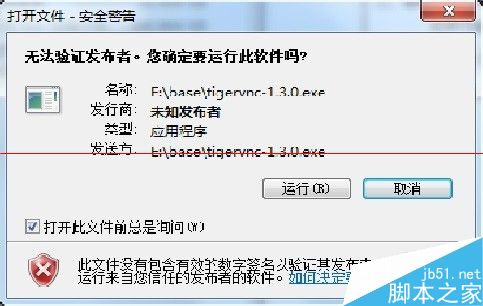
  1. 從 SourceForge 下載 tigervnc-2.30.exe(或更新版本)。
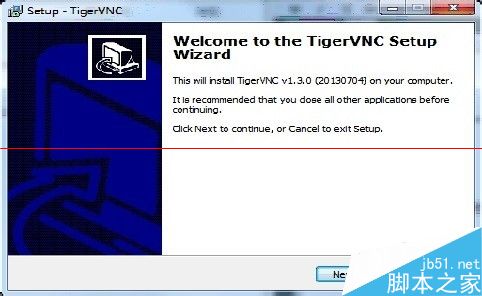
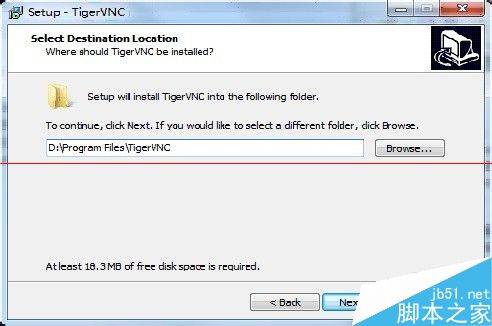
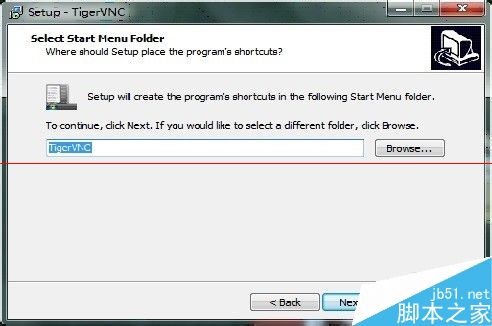
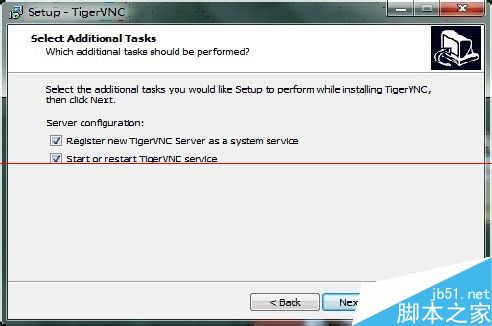
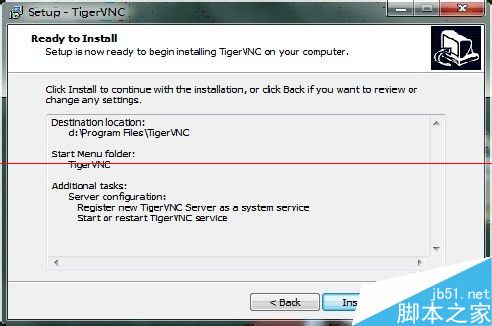
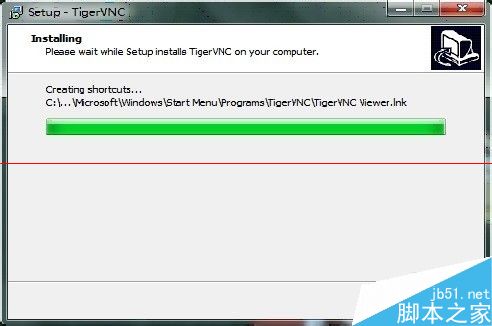
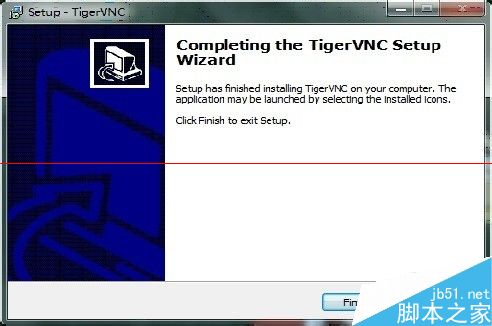
  2. 執行安裝:Next → I accept → 選擇安裝路徑 (如 D:\Program Files\TigerVNC) → Next → Next → Install → Finish。

Linux 端:安裝與設定 TigerVNC Server

  1. yum install -y tigervnc tigervnc-server
  2. vncserver 設定 VNC 登入密碼。
  3. 編輯 /etc/sysconfig/vncserver,取消最後兩行註解,修改 VNCSERVERS="1:root"(或你的用戶名)。
  4. service vncserver restart 重啟服務。

建立連線

  1. Windows 執行 vncviewer.exe。
  2. VNC Server 填入:Linux伺服器IP:1(對應 display :1)。
  3. 輸入密碼連線,即可看到 Linux 圖形化桌面。

注意:Linux 端需關閉 SELinux 防火牆,或開放 5900-5901 連接埠。

Copyright © Windows教程網 All Rights Reserved