批量製作 Win10 安裝 USB 不想每次下載 3 GB 映像?下載 ISO 檔一次,配合 UltraISO 寫入 USB,支援 WinXP/7/8/8.1/10 通用,步驟固定,僅映像檔不同。
準備工作
- 8 GB 以上 USB。
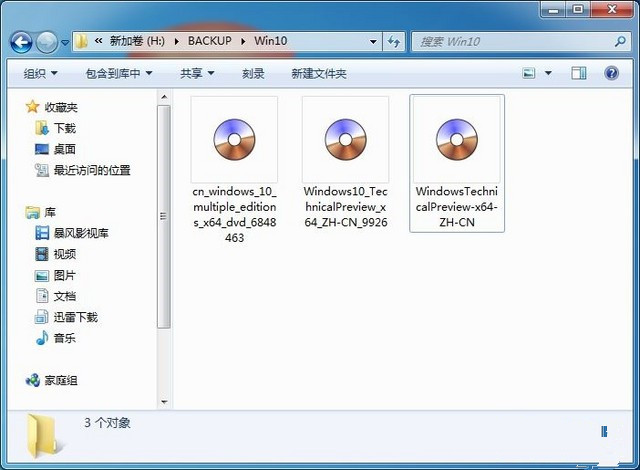
- Win10 ISO 映像檔 (本文示範:
cn_windows_10_multiple_editions_x64_dvd_6848463.iso,64 位元簡中家用/專業版)。
- UltraISO (光碟映像製作/編輯/轉換工具,可直接編輯啟動資訊製作可開機光碟/USB)。
製作步驟 (六步完成)
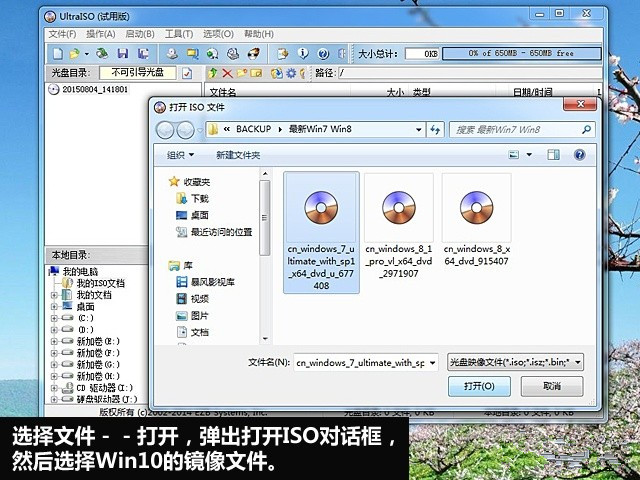
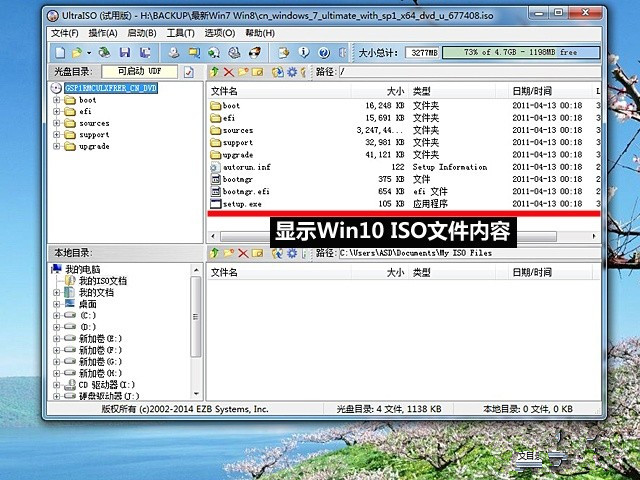
- UltraISO 「檔案」→ 「開啟」選擇 ISO 檔。
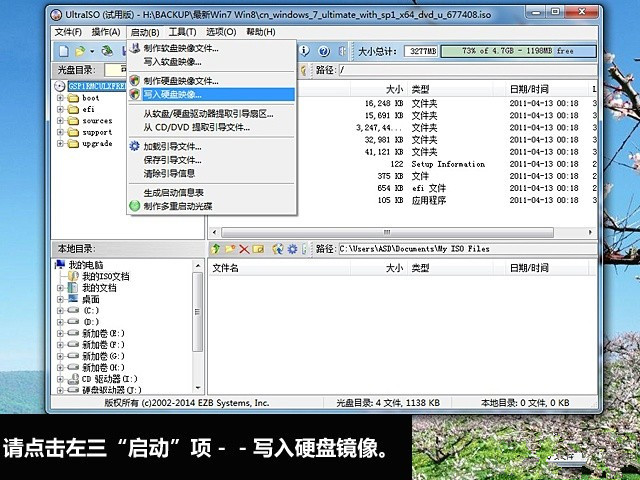
- 「啟動」→ 「寫入硬碟映像」。
- 「硬碟磁碟機」選擇目標 USB (帶光碟圖示者為映像檔)。
- 「寫入方式」建議 USB-HDD+ 或 USB-ZIP+ (支援 UEFI/BIOS 雙模式)。
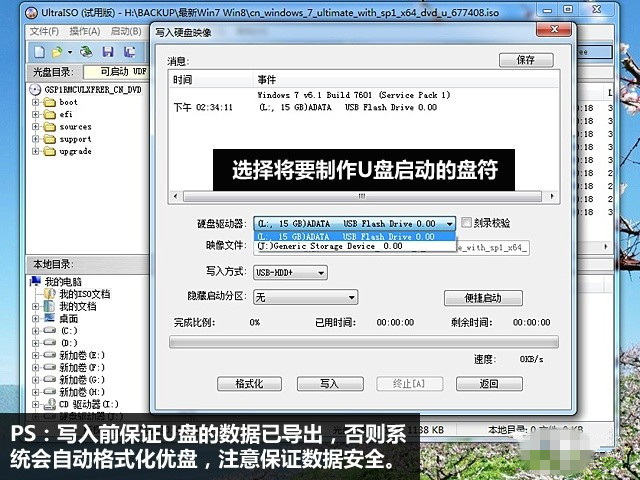
- 確認 USB 無重要資料 (寫入會清空) → 「寫入」。
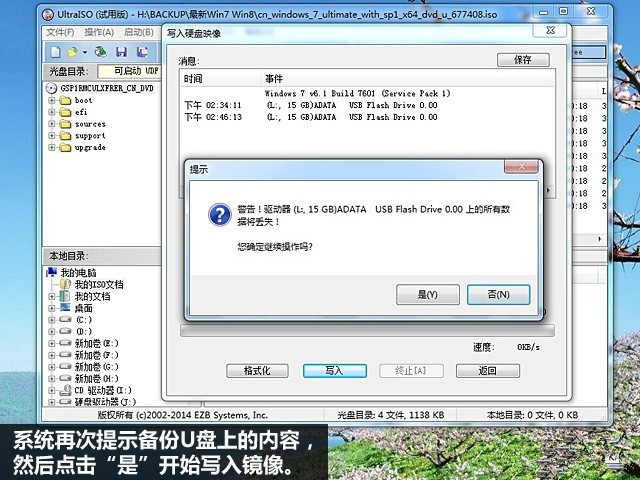
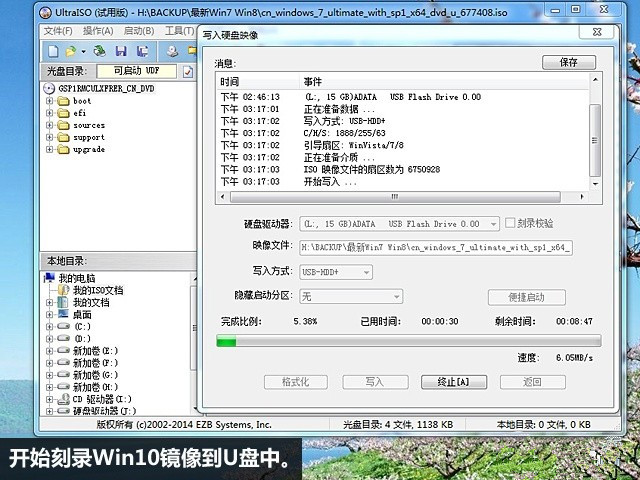
- 完成後 USB 仍可正常存放資料,不影響使用。
使用方式
- 新電腦無系統:插入 USB 直接開機安裝 (無需改 BIOS 開機順序)。
- 有系統電腦:進 BIOS 設定 USB 為第一啟動順序。
適用「Win10 安裝光碟/USB」與「Ghost Win10」兩種安裝模式。