Win10 上安裝 Oracle VirtualBox 虛擬機,支援客體作業系統多樣化測試。以下為標準安裝流程:
安裝步驟
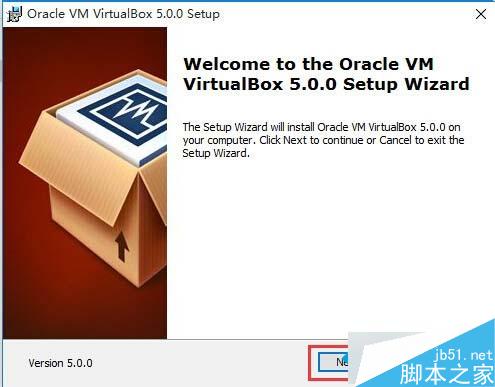
- 至 Oracle 官網下載 VirtualBox 安裝包,雙擊執行 → 「Next」。
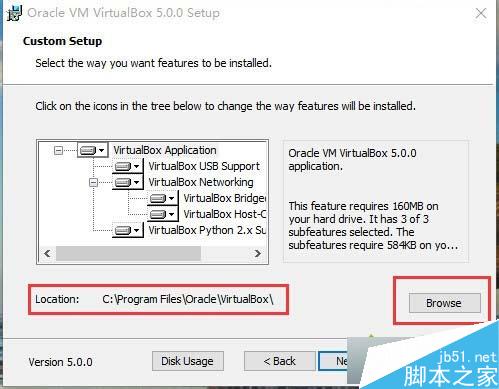
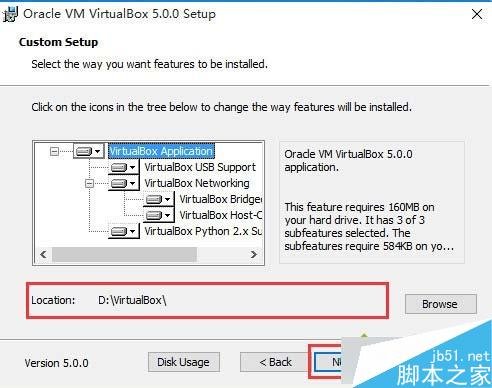
- 「Select the way you want features to be installed」:預設全選功能,建議點擊「Browse」更改安裝路徑(如
D:\VirtualBox\),避免佔用 C 槟空間。
- 確認路徑無誤 → 「Next」。
- 「Please choose from the options below」:預設全勾選(建立捷徑、註冊副檔名等) → 「Next」。
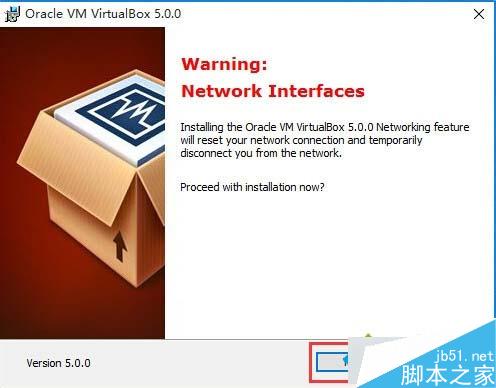
- 「Warning: Network Interfaces」:暫時斷網安裝網路驅動,選「Yes」。
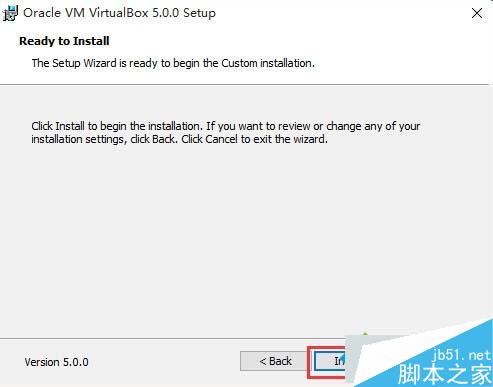
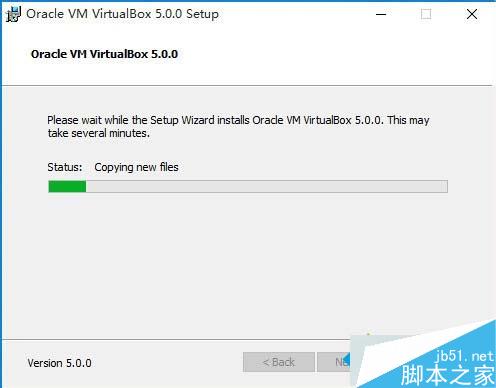
- 「Ready to Install」→ 「Install」開始安裝。
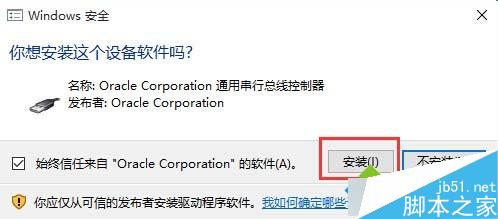
- 進度條近尾聲彈出「您想安裝這個裝置軟體嗎?」→ 必須點擊「安裝」,否則安裝中止。
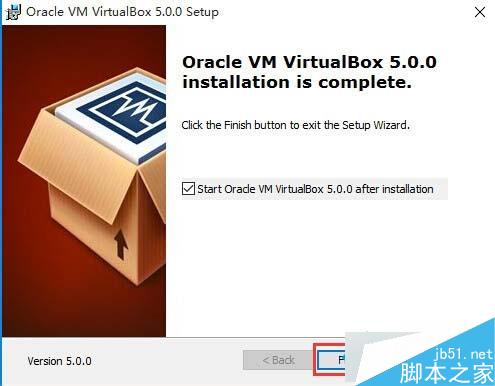
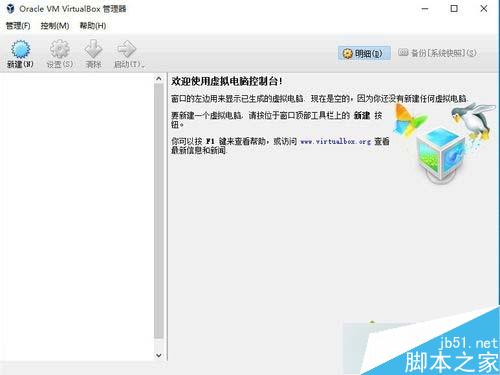
- 安裝完成 → 「Finish」進入 VirtualBox 主介面,即可建立虛擬機安裝客體作業系統。
VirtualBox 免費開源、跨平台、功能強大,是 Win10 多系統測試首選虛擬化方案。