Windows XP Windows 7 Windows 2003 Windows Vista Windows 綜合教學 Linux 系統教學
Windows 10 Windows 8 Windows 2008 Windows NT Windows Server 電腦軟體教學
您现在的位置: Windows教程網 >> Windows教程 >  >> Windows 綜合教學 >> 關於 Windows

Win10 提示 CAD 遺失 ac1st16.dll?騰訊電腦管家修復 或 環境變數新增 AutoCAD 路徑雙重解法

編輯:關於 Windows

CAD 啟動提示「系統錯誤,遺失 ac1st16.dll」,兩大解法快速修復。

方法一:騰訊電腦管家自動修復 (最簡單)

  1. 開啟管家 →「電腦診所」→「軟體問題」→「缺少 DLL 檔案」→ 掃描修復

方法二:手動設定環境變數 (徹底)

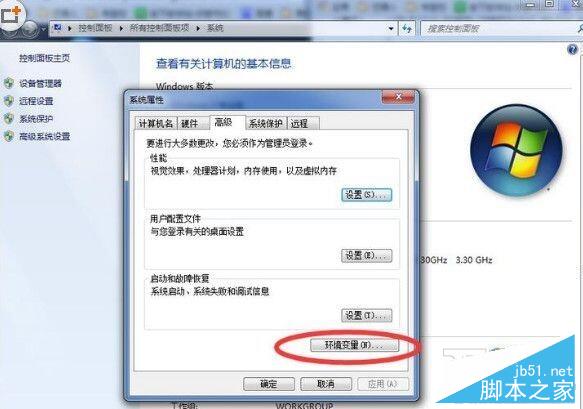
  1. 右鍵「這台電腦」→「內容」→「進階系統設定」→「環境變數」

  1. 「系統變數」→「新增」→ 變數名 AutoCAD → 變數值 C:\Program Files (x86)\Common Files
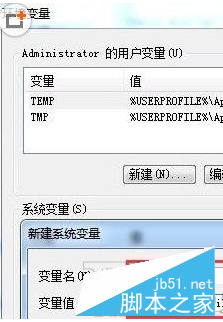
  1. 編輯 Path → 變數值附加:
    %SystemRoot%\system32;%SystemRoot%;%SystemRoot%\System32\Wbem;%SYSTEMROOT%\System32\WindowsPowerShell\v1.0;C:\Program Files (x86)\Microsoft SQL Server\100\Tools\Binn;C:\Program Files (x86)\Microsoft SQL Server\100\DTS\Binn;C:\Program Files (x86)\Common Files\Autodesk Shared
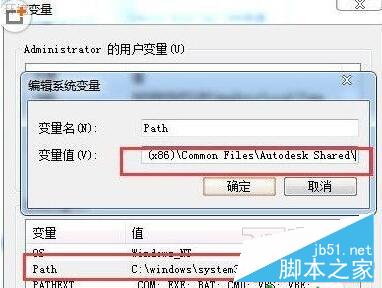
  1. 確定 → 無需重啟 → 直接啟動 CAD 正常運行

原理

ac1st16.dll 為 AutoCAD 授權/啟動相關 DLL,路徑未納入系統搜尋順序導致載入失敗。環境變數明確指定共用檔案路徑即可解決。

方法一適合新手,方法二適合追求乾淨系統/無管家用戶。

Copyright © Windows教程網 All Rights Reserved