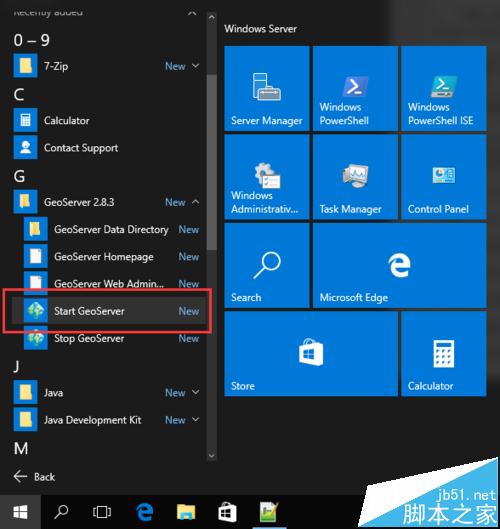
GeoServer 預設支援柵格格式有限,需安裝 GDAL 外掛擴充。本文記錄在 Windows x64 環境完整安裝流程,關鍵點:GeoServer 安裝時必須選「Run manually」,不能安裝為系統服務,否則 64 位元 JRE 下 GDAL 無法載入。
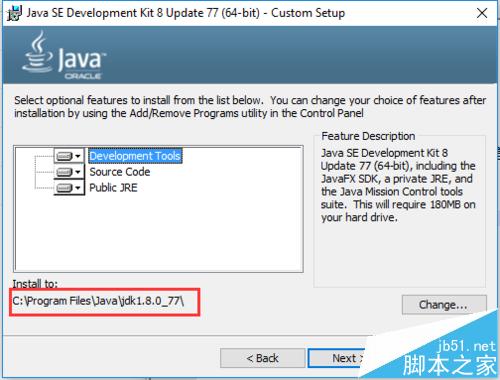
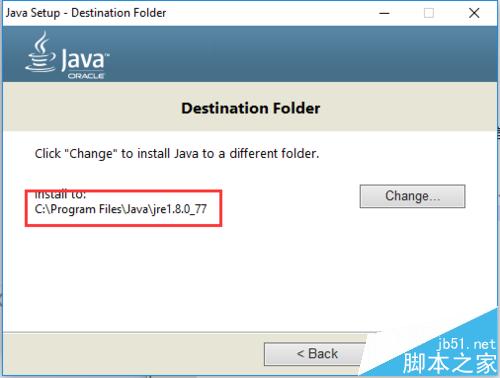
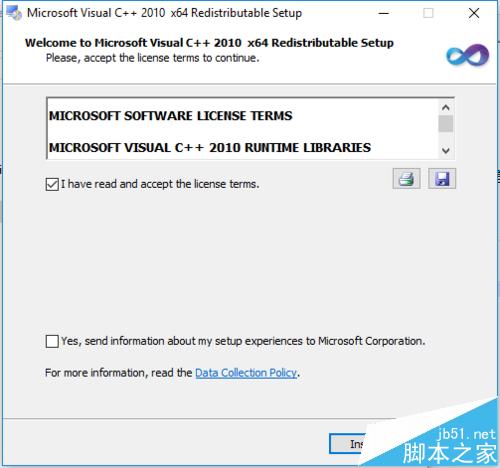
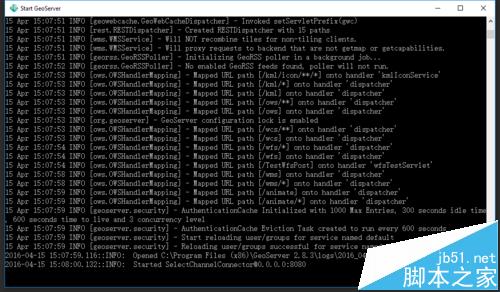
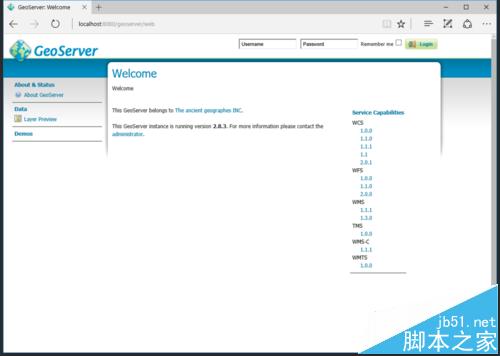
https://localhost:8080/geoserver 驗證。
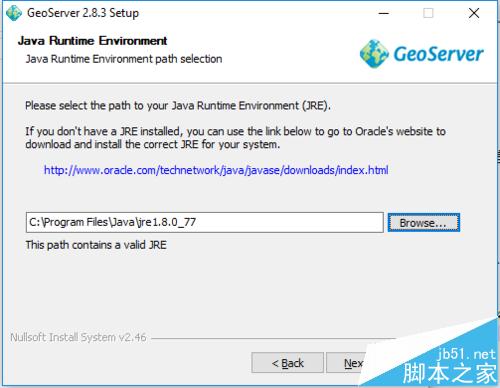
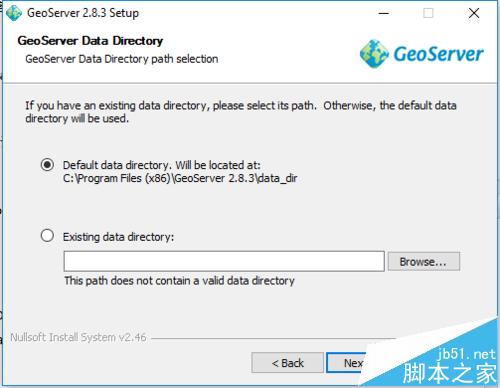
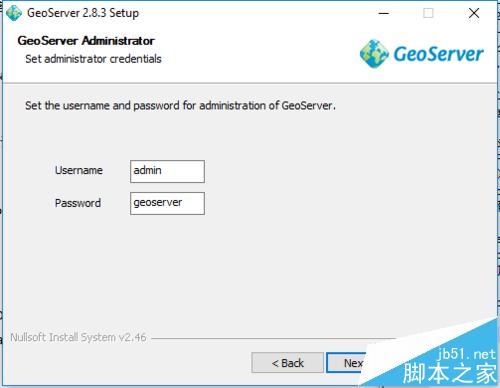
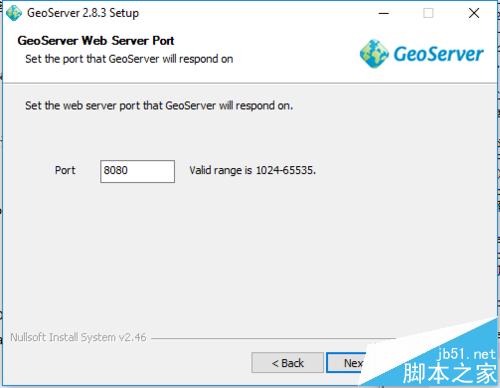
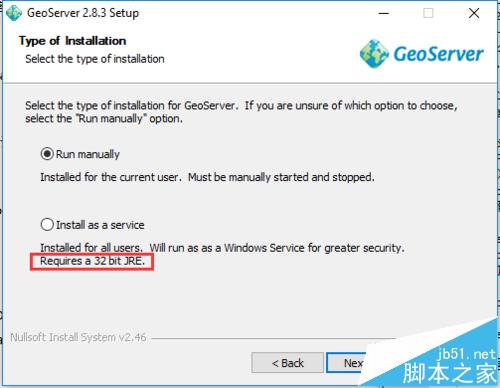
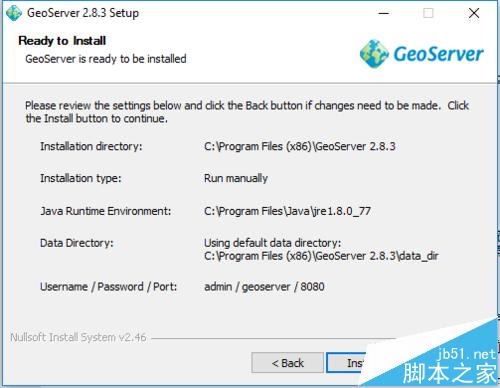
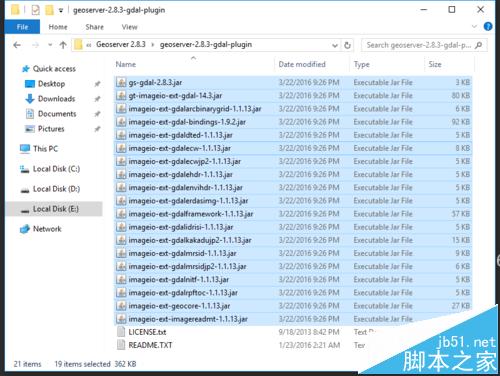
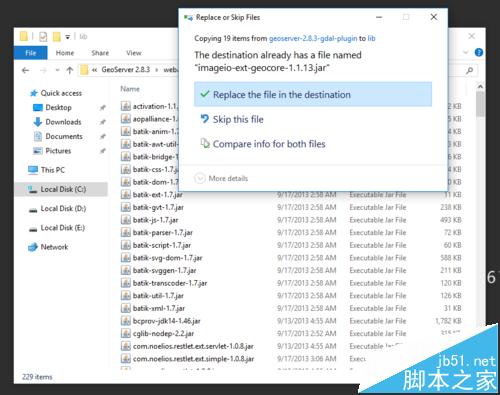
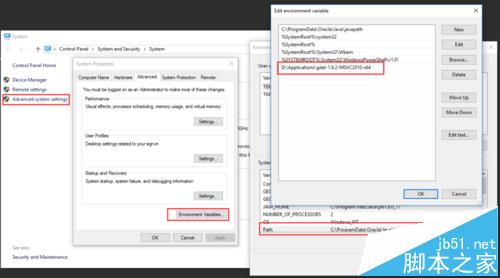
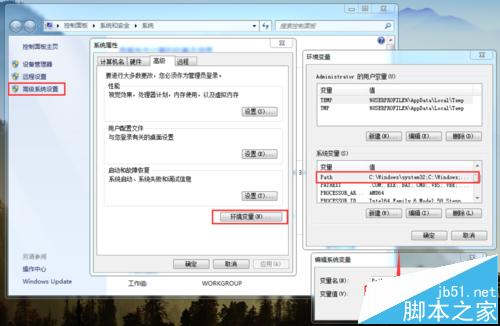
geoserver-2.8.3-gdal-plugin.zip,複製所有 jar 到 webapps\geoserver\WEB-INF\lib 覆蓋。gdal-1.9.2-MSVC2010-x64.zip,將目錄加入系統環境變數 PATH(舊版 OS 需手動加分號)。
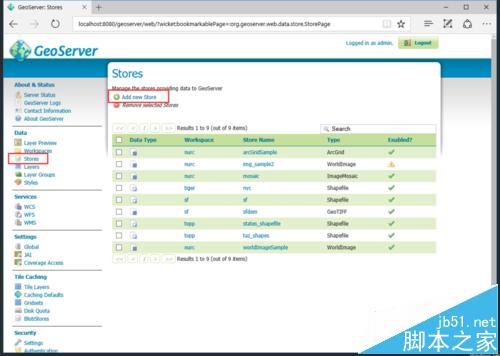
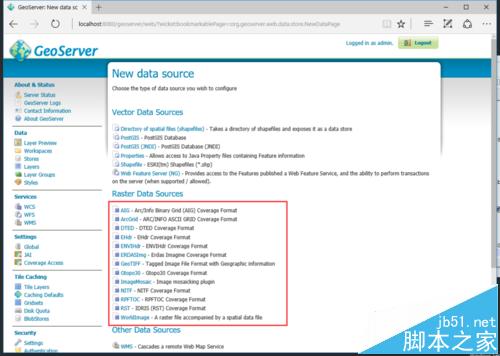
注意:x64 系統下絕對不能將 GeoServer 安裝為服務,否則 GDAL 無法載入。
Windows 執行指令大全:常用系統工具、管理單元、配件快速啟動指令彙總
Win7 重啟後 IP 位址遺失無法上網修復:netsh winsock/ip reset 重置網路堆疊指令法
WinXP 機箱前置面板耳機無聲音?Realtek 高清音訊設定「停用前置面板插孔偵測」
Win 8 如何關閉 Windows 防火牆?改用第三方安全軟體更安心
Win7 預設閘道不可用怎麼修復?網路介面卡屬性→IPv6 設自動取得、重開機即可解決
Win7 批次更名檔案:CMD 導出清單 + Excel 公式產生 ren 指令碼