Win8/8.1 安裝更新重開機時出現 800F0922,通常為更新伺服器連線異常或本地暫存損毀。依序嘗試三法通常可解。
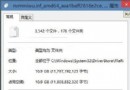
4.2.2.1、備用 4.2.2.2 (Level 3) 或 8.8.8.8/114.114.114.114 → 確定 → 重試更新。services.msc → 停止「Windows Update」服務。C:\Windows\SoftwareDistribution\DataStore 內所有檔案。C:\Windows\SoftwareDistribution\Download 內所有檔案。C:\Windows\SoftwareDistribution 重新命名為 SoftwareDistribution_Old。sfc /scannow、DISM /RestoreHealth)。
Windows 授權即將到期免費續期通用教學:HEU KMS Activator 一鍵啟用並自動續期
Win10 關閉 UAC 解決 Realtek HD Audio 驅動更新失敗
Windows 10 預覽版關閉開機密碼登入畫面:netplwiz 自動登入設定 (含安全性警示)
Win7 Print Spooler 服務啟動失敗?登錄表修補 ImagePath 秒啟動
Win10 設定預設顯示圖示而非縮圖,舊電腦開啟圖片資料夾不再卡頓
Windows 7 安裝失敗三大常見原因與排除對策:硬碟空間、安裝媒體、硬體故障
Win7 因 MMCSS 服務導致系統卡頓解決:登錄刪除依賴項
Win10 TH2 (1511) 升級後常見問題彙總與解決方案:安裝卡住、顯卡驅動崩潰、設定被重置、應用程式自動移除、BitLocker 失效、Windows Defender 無法啟用