Win10 瀏覽特定網站出現「SSL 連線錯誤」,通常是 Internet 選項中 SSL/TLS 協定未啟用。勾選所有 SSL 版本即可恢復存取。
解決步驟
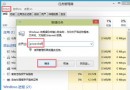
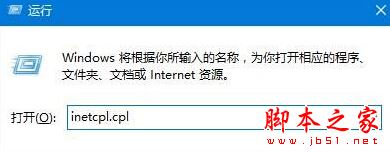
- Win + R →
inetcpl.cpl 開啟網際網路選項。
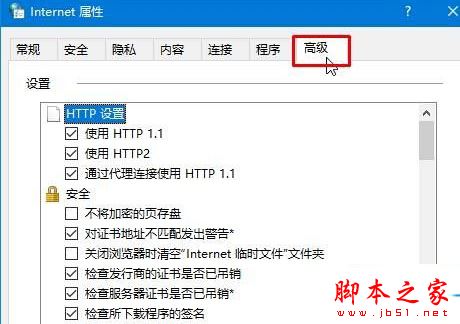
- 切換 進階 索引標籤。
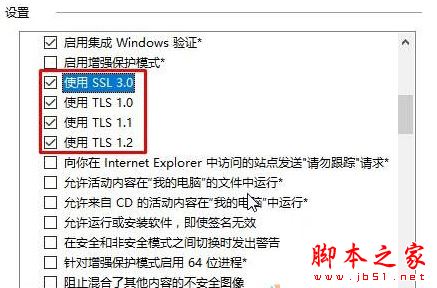
- 捲動至「安全性」區段,勾選:
☑ 使用 SSL 3.0
☑ 使用 TLS 1.0
☑ 使用 TLS 1.1
☑ 使用 TLS 1.2
- 套用 → 確定 → 重新啟動瀏覽器。
補充說明
- 現代網站多要求 TLS 1.2 以上,建議四項全開以相容舊站。
- 此設定影響 IE/Edge/Chrome (共用系統網際網路選項),Firefox 需在 about:config 另行設定。
- 若仍失敗,檢查系統時間是否正確、防火牆/防毒軟體是否攔截 HTTPS 流量。
延伸閱讀
- Win10 64 位 Firefox 開啟 Flash 網頁卡死解決