Win7 系統啟動 Outlook 彈出「Microsoft Outlook 已停止工作」,核心原因是 Outlook 內部檔案或相依 DLL 損壞。提供兩條修復路徑:錯誤詳情可見時替換損壞 DLL、無錯誤詳情時執行 Office 內建修復,附 DLL 修復工具推薦。
情況一:可查看問題詳細資訊 → 定向替換 DLL
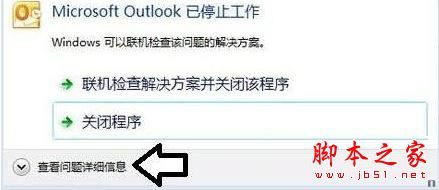
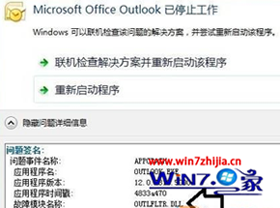
- 錯誤對話框點擊「檢視問題詳細資訊」
- 記錄「故障模組名稱」欄位顯示的 DLL 檔名 (如
mspst32.dll, outlmime.dll, ntdll.dll)
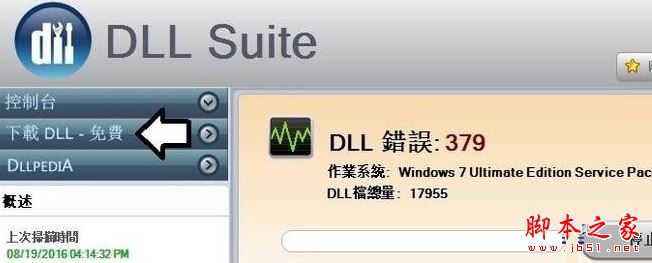
- 使用 DLL 修復工具下載對應版本檔案,置放於
C:\Windows\System32 (64 位) 或 C:\Windows\SysWOW64 (32 位)
- 以管理員身分開啟命令提示字元,執行
regsvr32 檔名.dll 註冊
- 重啟 Outlook 驗證
情況二:無錯誤詳情 → Office 內建修復
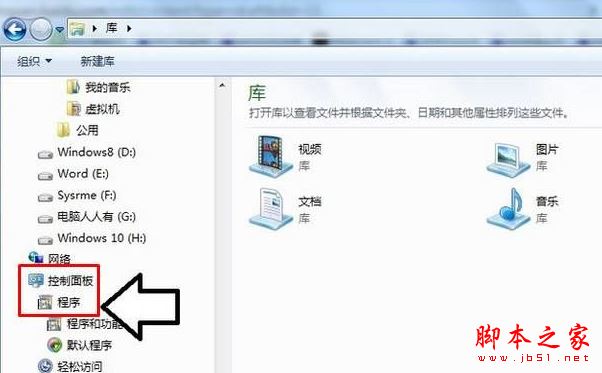
- Win+E 開啟檔案總管 → 左側「控制台」→ 「程式」→ 「程式和功能」
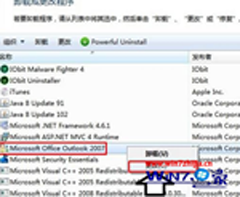
- 找到「Microsoft Office」套裝 → 右鍵 → 「變更」
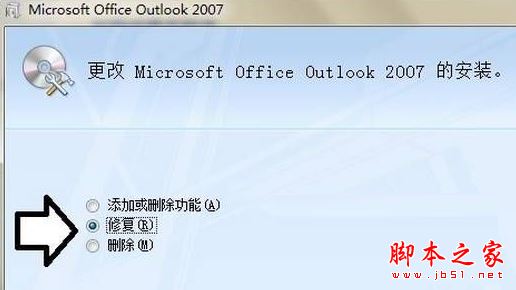
- 選擇「修復」→ 「繼續」→ 等待進度條完成 (約 5-15 分鐘)
- 重啟電腦後啟動 Outlook
推薦 DLL 修復工具
- DLL-Files Fixer:官方資料庫、自動註冊、備份還原
- System File Checker (內建):
sfc /scannow 掃描修復系統 DLL
- Dependency Walker:進階分析 Outlook 相依鏈,定位缺失 DLL
預防複發措施
- 定期執行
sfc /scannow 維護系統檔案完整性
- 避免強制關機/斷電導致 PST/OST 資料檔損壞
- Outlook 設定 → 進階 → 啟用「自動封存」減少單一 PST 體積
- 安裝 Office 更新 (Microsoft Update 開啟)