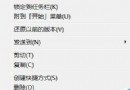
Windows 7 任務列整合快速啟動功能,但預設隱藏「快速啟動」工具列。透過「新增工具列」指向 Quick Launch 資料夾,即可恢復 XP/Vista 風格快速啟動區,方便放置常用程式捷徑而不佔用任務列主區域。
%APPDATA%\Microsoft\Internet Explorer\Quick Launch → 「選取資料夾」。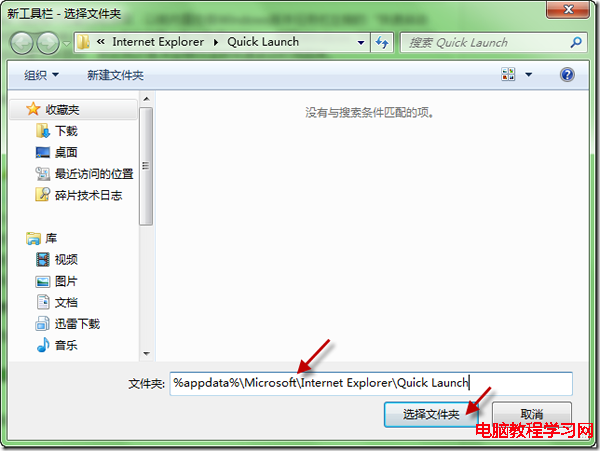
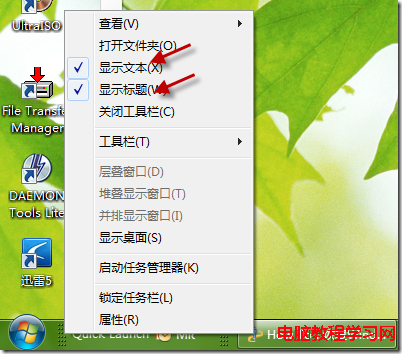
C:\Users\<使用者名稱>\AppData\Roaming\Microsoft\Internet Explorer\Quick LaunchWin8 移除快速啟動資料夾,但可在任務列右鍵 → 「工具列」 → 「新增工具列」指向自建資料夾(如 D:\QuickLaunch)達到同樣效果。Win10/11 同樣支援。
Win10 Build 10147 英文 64 位 ISO 鏡像與語言包下載(洩露版)
Win8/8.1 清理 WinSxS 元件存放區釋放 C 槽空間:DISM 指令 /StartComponentCleanup /ResetBase
一鍵解決Win10驅動與裝機軟體:驅動人生6.2.27.106完美支援Win10驅動修復+軟體安裝
Windows 建立/變更/移除使用者密碼完整圖文教學(適用 Win7/8/10)
Windows 7 筆電建立無線路由器 (軟體 AP) 圖文教學:管理員 CMD、netsh wlan、ICS 共用、啟動/停止指令
Windows 7 檔案總管頻繁重新啟動?三大原因與解決方案