Windows 7 內建「虛擬 WiFi」功能,可在現有無線網卡基礎上虛擬出第二張無線網卡,開啟網路連線共享 (ICS) 後,筆電即化身無線路由器,供手機、平板上網。
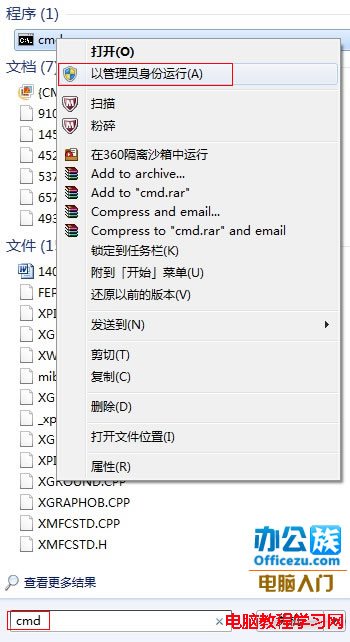
1、以系統管理員身分開啟命令提示字元 (開始 → 搜尋 cmd → 右鍵「以系統管理員身分執行」)。


2、啟用虛擬網卡並設定 SSID/密碼:netsh wlan set hostednetwork mode=allow ssid="MyWiFi" key="password123"
mode=allow 啟用,disallow 停用。ssid 熱點名稱 (建議英文)。key 密碼 (WPA2 加密,最少 8 碼)。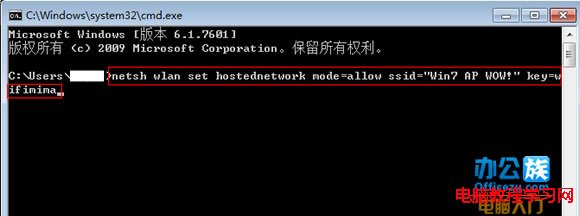
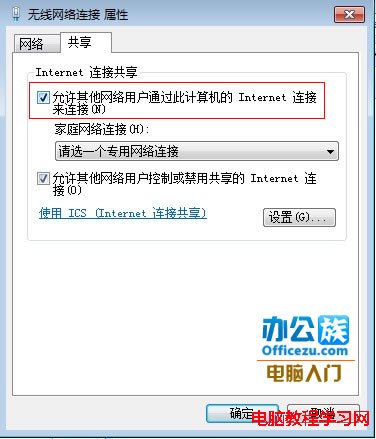
3、開啟網路連線共享 (ICS):
「網路連線」→ 右鍵已連網的介面卡 →「內容」→「共用」→ 勾選「允許其他網路使用者透過此電腦的網際網路連線」→ 家庭網路連線選擇虛擬 WiFi 介面卡 (通常為「無線網路連線 2」) → 確定。

4、啟動熱點:netsh wlan start hostednetwork (關閉用 stop)。
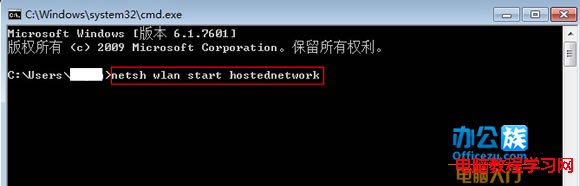
5、手機搜尋 SSID 輸入密碼即可上網。
Windows 10 無法辨識 USB 隨身碟?磁碟管理修改原則設為「較佳效能」修復
Win10 Mobile 10563 预览版上手:Edge 书签同步、文本缩放、Device Portal 旁加载
Win10 升級後 C 槽出現 Windows.old 資料夾?能不能刪?官方正確清理教學
Win10 虛擬機無法全螢幕解決:更新 VMware Tools、啟用 Retina 解析度、重裝 Tools
Windows 10 多桌面快速切換鍵:Win + Tab 輕鬆管理虛擬桌面
下周開放升級!Win10 預覽版 PC 版優先推送,手機版 2 月跟進,含 25 語言版本
Win7 註冊表找不到 msahci 鍵值?正確查看路徑與 AHCI 模式啟用指南
Windows 8/8.1 查看 DirectX 版本教學:dxdiag 指令一鍵查詢,Win10 將內建 DirectX 12