每天需清空回收站、重新開機,若能在右鍵選單直接執行該多方便。透過匯入登錄檔即可為檔案/資料夾/桌面背景右鍵選單新增這兩個指令。
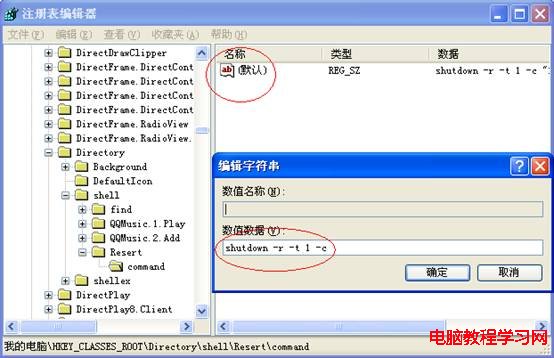
regedit → 定位 HKEY_CLASSES_ROOT\Directory\shell。Restart → 預設值設為 重新開機。command 機碼 → 預設值設為:shutdown -r -t 1 -c "重新開機"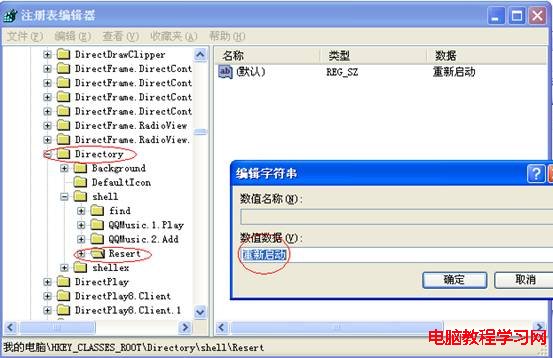
EmptyRecycleBin.reg:Windows Registry Editor Version 5.00
[HKEY_CLASSES_ROOT\*\shell\empty]
"CommandStateHandler"="{c9298eef-69dd-4cdd-b153-bdbc38486781}"
"Description"="@shell32.dll,-31332"
"Icon"="shell32.dll,-254"
"MUIVerb"="@shell32.dll,-10564"
[HKEY_CLASSES_ROOT\*\shell\empty\command]
"DelegateExecute"="{48527bb3-e8de-450b-8910-8c4099cb8624}"
[HKEY_CLASSES_ROOT\Folder\shell\empty]
"CommandStateHandler"="{c9298eef-69dd-4cdd-b153-bdbc38486781}"
"Description"="@shell32.dll,-31332"
"Icon"="shell32.dll,-254"
"MUIVerb"="@shell32.dll,-10564"
[HKEY_CLASSES_ROOT\Folder\shell\empty\command]
"DelegateExecute"="{48527bb3-e8de-450b-8910-8c4099cb8624}"
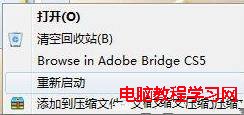
此法調用系統內建 Shell 延伸模組,無需第三方軟體,相容性極佳。
Windows 10 開啟 Wi-Fi 熱點完整教學:命令列建立虛擬網卡並共享網路
Win8 如何在側邊欄顯示桌面小工具?開啟/拖曳/關閉小工具完整教學
Win10/Win8 藍屏「您的電腦出現問題,需要重新啟動」三大成因與解決方案
Windows 7 網路連線失敗錯誤 797 成因與解決辦法:檢查 Modem、網卡驅動、撥號設定
Windows 10 週年更新找不到「喚醒需密碼」選項?改用帳戶設定移除密碼解鎖
如何刪除 Win8.1 導覽窗格中的 SkyDrive (OneDrive) 捷徑