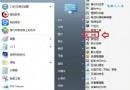
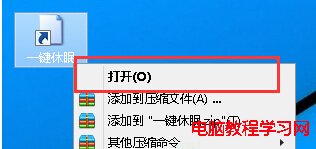
Windows 8 開始選單移除後,休眠選項較難尋找。建立桌面捷徑呼叫系統休眠函式,即可一鍵進入休眠模式(耗電極低、保留工作階段、開機秒進桌面)。以下為建立步驟。
rundll32.exe powrprof.dll,SetSuspendState 0,1,0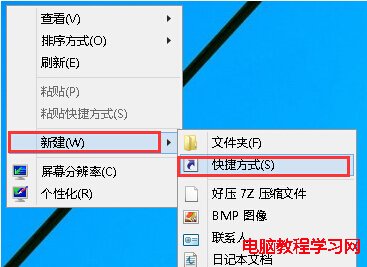
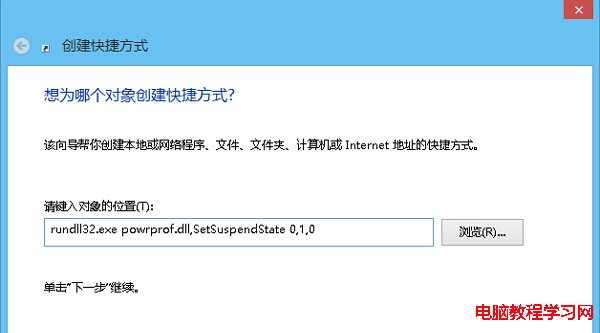
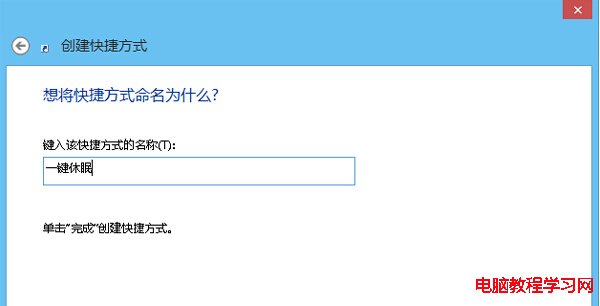
powrprof.dll:電源設定檔 DLL。SetSuspendState:設定暫停狀態函式。0,1,0:Hibernate=0 (休眠而非睡眠)、ForceCritical=1 (強制)、DisableWakeEvent=0 (允許喚醒事件)。| 模式 | 耗電 | 恢復速度 | 資料安全 | 指令參數 |
|---|---|---|---|---|
| 睡眠 (Standby/S3) | 低 (維持記憶體供電) | 極快 (秒級) | 斷電資料遺失 | rundll32.exe powrprof.dll,SetSuspendState 0,0,0 |
| 休眠 | 近零 (寫入 hiberfil.sys 斷電) | 快 (數十秒) | 資料寫入硬碟安全 | rundll32.exe powrprof.dll,SetSuspendState 0,1,0 |
| 混合睡眠 | 低 (記憶體供電+寫入硬碟) | 極快 | 雙重保護 | 電源選項啟用「允許混合睡眠」 |
以系統管理員身分執行:powercfg /hibernate on。確認 C:\hiberfil.sys 存在且大小約等於實體記憶體容量。
一鍵休眠捷徑,讓筆電/台式機暫離時省電又安心。
Win10 登入畫面自動開啟數字鍵盤 NumLock?修改登錄 InitialKeyboardIndicators 即可實現
Win7 連不上無線路由器?檢查網卡狀態與 TCP/IP 設定逐步排查
Windows 8.1 新增語言包完整圖解:控制台 → 時鐘語言與地區 → 新增語言 → 下載語言套件 → 設為主要語言
Windows 8 如何以其他使用者身分執行程式?Shift+右鍵即可呼叫選單
Windows 7 寬頻網路加速技巧:修改 TCP 接收視窗大小提升傳輸效率
徹底停用 Windows 內建防火牆:停用服務 + 刪除控制台項目雙重保險