Windows 7 檔案總管搜尋框會記住歷史關鍵字,隱私敏感時需清除。提供兩種方案:群組原則徹底停用記錄功能、或手動刪除特定記錄。
方案一:群組原則徹底停用搜尋歷史記錄 (專業版/企業版/旗艦版)
- Win + R →
gpedit.msc
- 依序展開:
使用者設定 → 系統管理範本 → Windows 元件 → Windows 檔案總管
- 右側找到 **「在 Windows 檔案總管搜尋方塊中關閉最近搜尋項目的顯示」**,雙擊 → 選擇 **「已啟用」** → 確定。
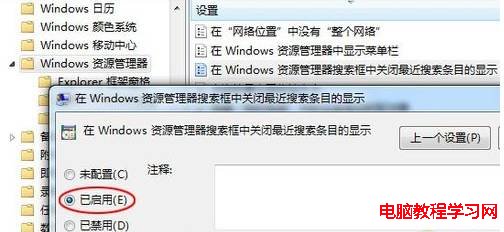
- 關閉群組原則編輯器,設定即時生效 (無需重開機)。
方案二:手動刪除特定搜尋記錄 (所有版本通用)
- 在檔案總管搜尋框點選,歷史記錄下拉。
- 游標移至欲刪除的記錄項目 (藍色反白)。
- 按鍵盤 Delete 鍵,該記錄即被移除。
方案三:註冊表法 (家用版無 gpedit.msc 時)
- Win+R →
regedit
- 瀏覽至:
HKEY_CURRENT_USER\Software\Policies\Microsoft\Windows\Explorer
(無則手動建立)
- 新增 DWORD (32位元):**
DisableSearchBoxSuggestions = 1**
- 重新登入或重開機生效。
補充:清除檔案總管「最近使用的檔案」
資料夾選項 → 「一般」索引標籤 → 「隱私權」區塊 → 「清除」按鈕,可一次清除快速存取與最近使用歷史。
根據隱私需求選擇適合方案,保護搜尋習慣不被他人窺探!