Windows XP Windows 7 Windows 2003 Windows Vista Windows 綜合教學 Linux 系統教學
Windows 10 Windows 8 Windows 2008 Windows NT Windows Server 電腦軟體教學

Windows 8/8.1 清除 Windows Store 快取修復應用商店異常:wsreset.exe 一鍵重置

編輯:Win8 常見問題解答

Windows Store (應用商店) 出現無法開啟、下載卡住、更新失敗、錯誤代碼 (0x80070005、0x8024001E 等) 時,多數源於本地快取損毀。執行內建 wsreset.exe 即可清除快取並自動重啟商店,無需重裝系統或複雜操作。

操作步驟

  1. 按 Win+Q (或 Win+S) 開啟搜尋 (應用程式搜尋)。
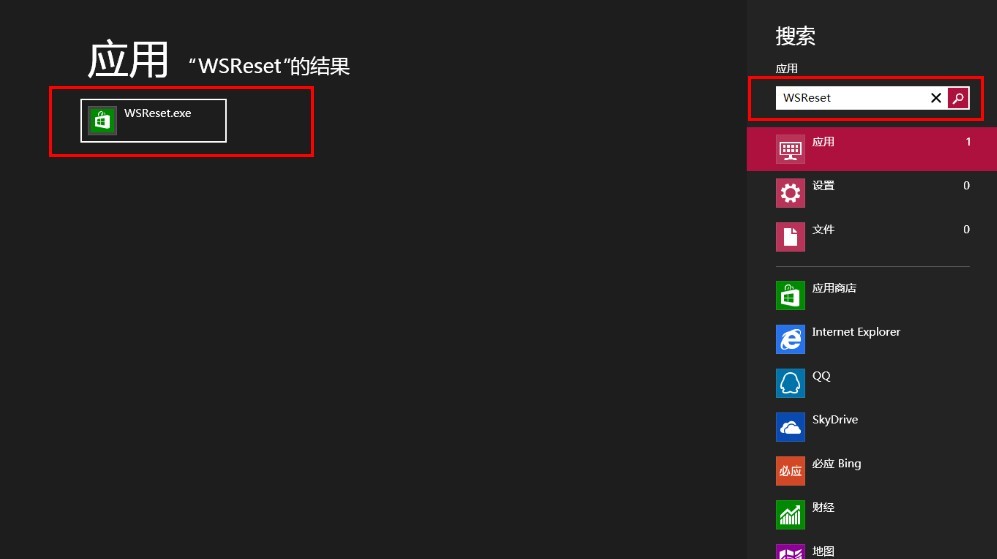
  2. 輸入 WSReset → 直接按 Enter 執行。
搜尋執行 WSReset
  1. 命令提示字元視窗短暫閃現 (黑框無文字),稍等數秒。
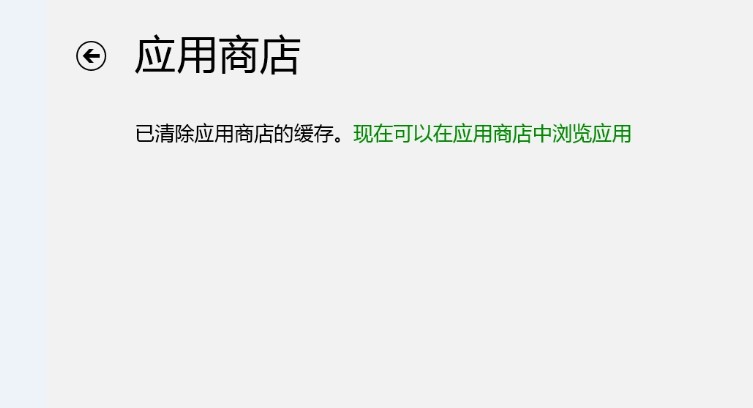
  2. Windows Store 自動啟動,顯示「快取已清除」或直接進入首頁。
Store 重啟完成

原理說明

  • wsreset.exe 會刪除 %LocalAppData%\Packages\WinStore_*\LocalState\Cache 等快取目錄,並重置 Store 應用狀態。
  • 不影響已安裝應用、使用者帳戶、購買紀錄。

進階修復 (若 wsreset 無效)

  1. 重新註冊 Store 應用:管理員 PowerShell 執行:
    Get-AppXPackage -AllUsers -Name Microsoft.WindowsStore | Foreach {Add-AppxPackage -DisableDevelopmentMode -Register "$($_.InstallLocation)\AppXManifest.xml"}
  2. 檢查網路/代理/防火牆:確保可連線 *.windowsstore.com、*.microsoft.com、*.windowsupdate.com。
  3. 日期時間同步:系統時間偏差 > 5 分鐘會導致 SSL/TLS 驗證失敗,Store 無法連線。
  4. 建立新使用者帳戶測試:排除個人設定檔損毀。

Windows 10/11 同樣適用

wsreset.exe 於 Windows 10/11 仍內建且功能相同,Microsoft Store (新版商店) 亦適用。

Copyright © Windows教程網 All Rights Reserved