Windows XP Windows 7 Windows 2003 Windows Vista Windows 綜合教學 Linux 系統教學
Windows 10 Windows 8 Windows 2008 Windows NT Windows Server 電腦軟體教學

將 Windows 8 安裝至 USB 隨身碟/行動硬碟:Windows To Go 完整製作教學

編輯:Win8 系統應用技巧

Windows To Go 是 Windows 8 企業版專屬功能,可將完整的 Windows 8 企業版系統安裝至經認證的 USB 隨身碟/行動硬碟,插入任何相容電腦即可開機進入個人化的企業環境。本文提供使用 imagex.exe 與 bcdboot.exe 的命令列標準製作流程。

準備項目

  • 容量 ≥ 32 GB 的 USB 3.0 隨身碟或行動硬碟 (Microsoft 認證清單裝置效能最佳)。
  • 已安裝 Windows 8 的電腦 (作為製作環境)。
  • Windows 8 企業版 ISO 映像檔。
  • imagex.exe:安裝 Windows Automated Installation Kit (WAIK) for Windows 8 或 Windows Assessment and Deployment Kit (ADK) 後,可在 C:\Program Files\Windows AIK\Tools\amd64 (或 x86) 找到。

製作步驟

  1. 以系統管理員身分執行 cmd.exe。
  2. 輸入 diskpart 進入磁碟分割工具。
  3. 依序執行以下指令 (# 為 USB 裝置編號,請用 list disk 確認):
list disk
select disk #
clean
create partition primary
format fs=ntfs quick
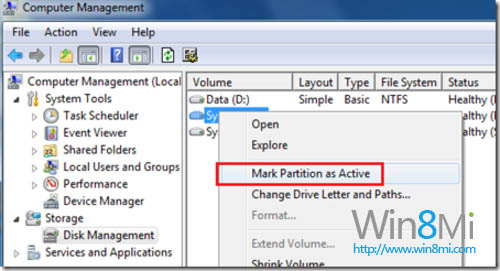
active
exit
  1. 掛載 Windows 8 企業版 ISO,將 sources\install.wim 複製到 imagex.exe 同目錄。
  2. 在命令提示字元切換至 imagex.exe 目錄,執行映像部署:
imagex.exe /apply install.wim 1 X:

X: 為 USB 裝置在目前系統的磁碟機代號。

  1. 部署完成後,執行 BCD 開機設定:
bcdboot.exe X:\windows /s X: /f ALL
  1. 等待完成,安全移除 USB 裝置。製作成功!

圖文關鍵步驟

磁碟管理設定啟動分區

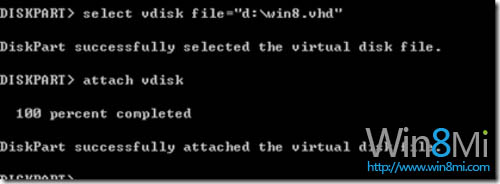
DISKPART 建立 VHD

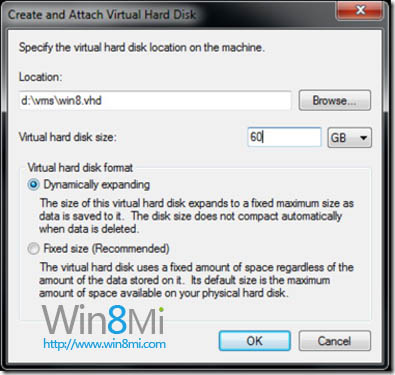
磁碟管理建立 VHD

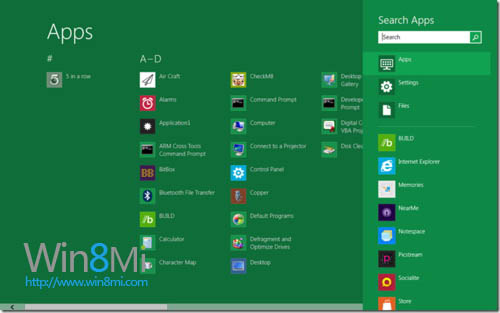
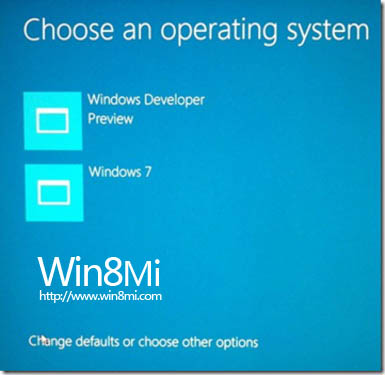
開機選單

進入 Windows To Go

替代方案:使用 VHD 虛擬硬碟安裝 (適用一般版 Windows 8)

若非企業版授權,可採用 VHD 開機方式:

  1. 同樣用 diskpart 建立 NTFS 分區並設為作用中。
  2. 在安裝程式「選擇安裝類型」畫面按 Shift+F10 開啟命令提示字元。
  3. 執行 diskpart 建立 VHD:
create vdisk file="D:\win8.vhd" type=expandable maximum=50000
select vdisk file="D:\win8.vhd"
attach vdisk
  1. 回到安裝畫面點擊「重新整理」,選擇剛掛載的 VHD 分區安裝。
  2. 安裝完成後,Windows 開機管理員會自動加入 VHD 開機項。

重要提醒

  • VHD 最大容量必須 ≤ 實體分區剩餘空間:動態擴展 VHD 雖然初始較小,但開機時會依最大值配置空間,剩餘空間不足會導致開機失敗。
  • 建議使用 EasyBCD 圖形化工具管理開機項,避免手動 bcdedit 指令錯誤導致無法開機。
  • Windows To Go 需 Windows 8 Enterprise 版授權,一般版/專業版不支援官方 WTG 功能,VHD 開機為替代方案。
  • 隨身碟讀寫速度直接影響體驗,強烈建議使用 USB 3.0 高速隨身碟 (讀取 > 100 MB/s)。
Copyright © Windows教程網 All Rights Reserved