Windows 8 防火牆功能強化,支援專用/公用網路分別設定。若已安裝第三方防毒軟體(通常含防火牆),建議關閉系統防火牆釋放資源。
關閉步驟
- Win+C 開啟 Charms 列 → 「設定」 → 「控制台」。


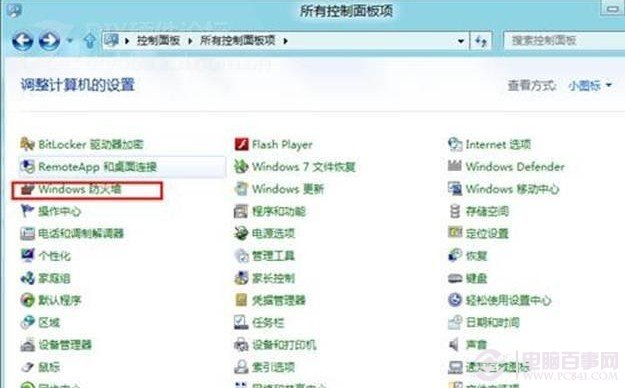
- 控制台切「大圖示」檢視 → 點擊「Windows 防火牆」。
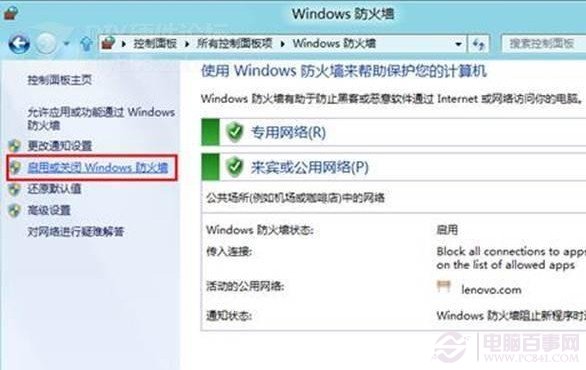
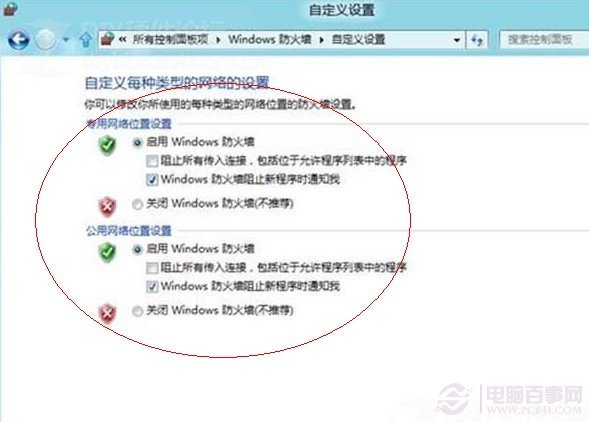
- 左側點選「開啟或關閉 Windows 防火牆」。
- 專用/公用網路均選「關閉 Windows 防火牆(不建議)」,確定套用。
補充說明
- Win8 防火牆可針對「專用網路」(家庭/公司)與「公用網路」(咖啡廳/機場)分別啟停、設定通知規則。
- 關閉系統防火牆前,確認第三方防毒軟體防火牆功能已啟用且正常運作。
- 單純為節省資源關閉防火牆風險極高,僅建議在有完整替代方案時操作。