Windows XP Windows 7 Windows 2003 Windows Vista Windows 綜合教學 Linux 系統教學
Windows 10 Windows 8 Windows 2008 Windows NT Windows Server 電腦軟體教學

Win8 安裝 .NET 3.5 出現 0x800F0906 錯誤解決:群組原則指定替代來源或使用安裝媒體 DISM 指令

編輯:Win8 系統應用技巧

Win8/Server 2012 中 .NET 3.5 為「隨需安裝」功能,元資料內建但二進位檔需從 Windows Update 下載,常因網路/Proxy/防火牆/WSUS 設定失敗出現 0x800F0906。

方案一:群組原則指定替代來源(企業環境適用)

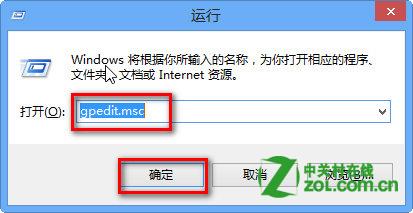
  1. Win+R → gpedit.msc 開啟本機群組原則編輯器
  2. gpedit.msc
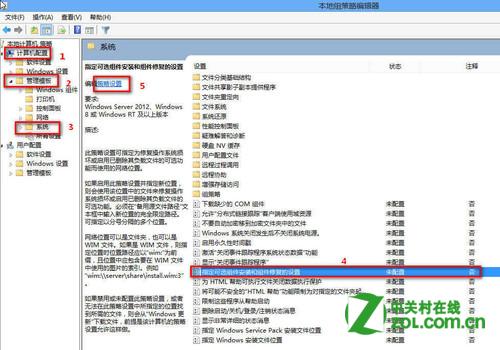
  3. 依序展開:電腦設定 → 管理範本 → 系統
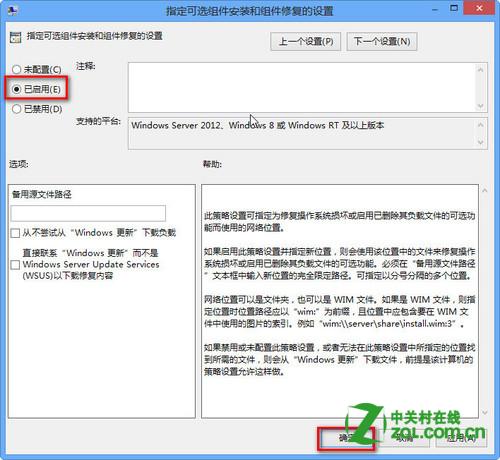
  4. 開啟「指定選用元件安裝和元件修復的來源位置」 → 啟用
  5. 群組原則設定1
  6. 群組原則設定2
  7. 「替代來源檔案路徑」填入:
  8. 共享資料夾:\\server_name\share\Win8\sxs
  9. 或 WIM 檔:WIM:\\server_name\share\install.wim:3(3 為映像索引)
  10. 勾選「直接連線 Windows Update 下載修復內容而非 WSUS」
  11. 確定 → 提權 CMD 執行 gpupdate /force 立即套用

方案二:使用安裝媒體離線安裝(最直接)

  1. 插入 Win8/Server 2012 安裝媒體
  2. 提權 CMD 執行:
  3. Dism /online /enable-feature /featurename:NetFx3 /All /Source:D:\sources\sxs /LimitAccess
  4. D: 為安裝媒體磁碟機代號,請自行調整

Windows Server 2012 專用:PowerShell / 加入角色精靈

  • PowerShell:Install-WindowsFeature -name NET-Framework-Core -source D:\sources\sxs
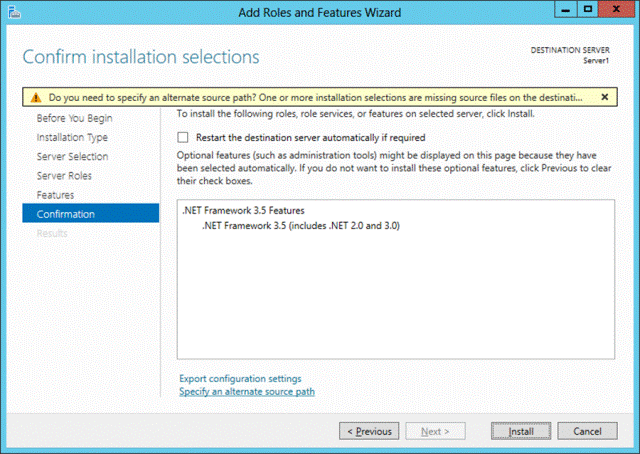
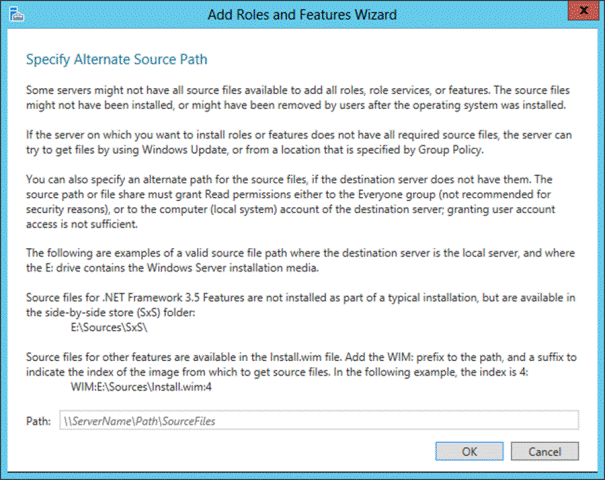
  • 加入角色精靈:選 .NET 3.5 → 指定替代來源路徑 → SxS 資料夾路徑 → 安裝
  • 指定替代來源路徑
  • 輸入Sxs路徑

離線安裝媒體法最快且不受網路環境影響,強烈建議優先採用。

Copyright © Windows教程網 All Rights Reserved