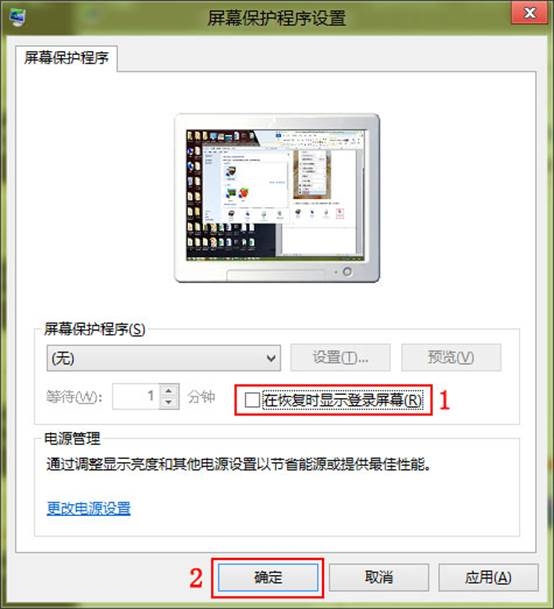
Windows 8 預設螢幕保護程式啟動或螢幕關閉喚醒時會要求輸入密碼。若在安全環境下使用,可取消此設定直接回到桌面。步驟如下:
效果: 螢幕保護程式啟動後移動滑鼠/按鍵喚醒,直接回到桌面無需輸入密碼。 螢幕關閉 (電源計畫設定) 喚醒時同樣直接回到桌面。 若需安全性,請保持勾選;或設定「動態鎖定」 (Windows 10) 配合手機藍牙自動鎖定。 注意:此設定不影響 Win+L 手動鎖定、切換使用者、重新開機後的登入畫面。
Win8 家長控制使用教學:監控孩子電腦使用情況
Win8.1 如何從「這台電腦」移除預設資料夾 (下載、音樂、圖片等)?登錄編輯器刪除 NameSpace 鍵值
Win8.1 開機數字鍵盤 Num Lock 未自動開啟?註冊表/登入介面/BIOS 三法強制開啟
Win 8 開機自動檢測硬碟的排查與修復指南
獲取 Windows 8.1 獨立安裝 ISO 映像檔的實用技巧
Windows 8 記憶體診斷工具完整使用教學:基本/標準/詳細三種模式、輪回次數自訂、結果解讀
Win8.1 IE 瀏覽器鍵盤捷徑:不用滑鼠也能高效瀏覽長網頁
Win8.1 寬帶撥號錯誤 651 解決:啟用 Remote Access Auto Connection Manager 服務