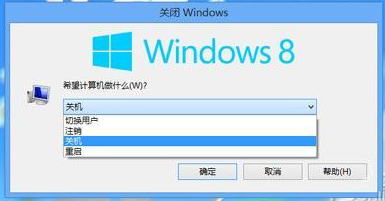
Windows 8 關機步驟繁瑣,本文教您透過一段 VBS 腳本與登錄檔,在資源管理器或桌面空白處右鍵即可直接呼叫系統關機對話方塊,並包含「切換使用者」、「登出」等額外選項,比原生關機更方便。
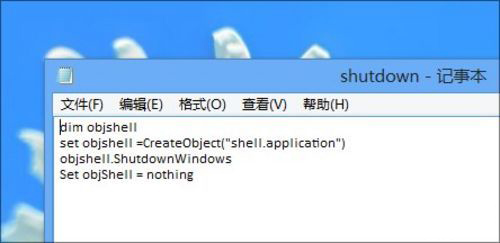
dim objshell
set objshell = CreateObject("shell.application")
objshell.ShutdownWindows
Set objShell = nothing
將上述程式碼貼上記事本,存為 shutdown.vbs。
Windows Registry Editor Version 5.00

[HKEY_CLASSES_ROOT\Directory\Background\shell\SuperHidden]
@="關閉 Windows 8"

[HKEY_CLASSES_ROOT\Directory\Background\shell\SuperHidden\Command]
@="WScript.exe C:\\Windows\\shutdown.vbs"
存為 reg.reg。
shutdown.vbs 移至 C:\Windows\ 目錄。reg.reg,確認匯入登錄檔。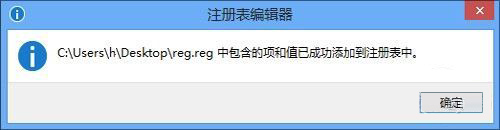
電腦常識
執行 reg delete "HKCR\Directory\Background\shell\SuperHidden" /f 並刪除 C:\Windows\shutdown.vbs 即可還原。