Windows XP Windows 7 Windows 2003 Windows Vista Windows 綜合教學 Linux 系統教學
Windows 10 Windows 8 Windows 2008 Windows NT Windows Server 電腦軟體教學

Win8 如何使用遠端桌面功能?系統屬性→遠端→勾選「允許遠端連線」與「僅允許網路層級驗證」

編輯:Win8 系統應用技巧

Windows 8 專業版/企業版內建遠端桌面伺服器,啟用後可從其他裝置 (Windows/macOS/iOS/Android) 遠端控制電腦。
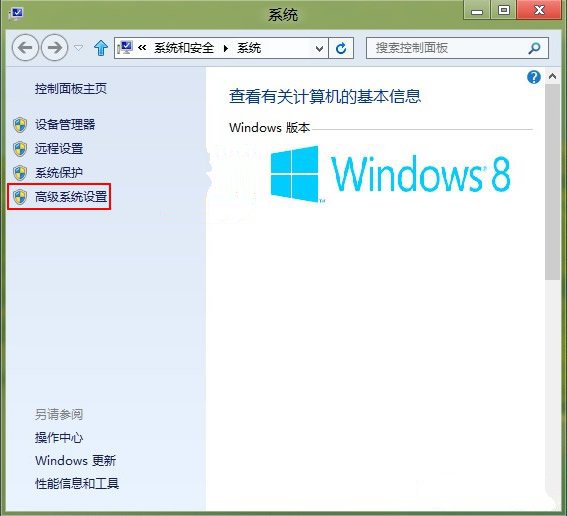
啟用步驟

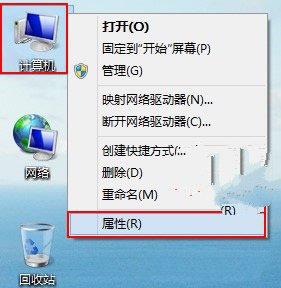
  1. 右鍵「這台電腦」→「內容」→ 左側「進階系統設定」。
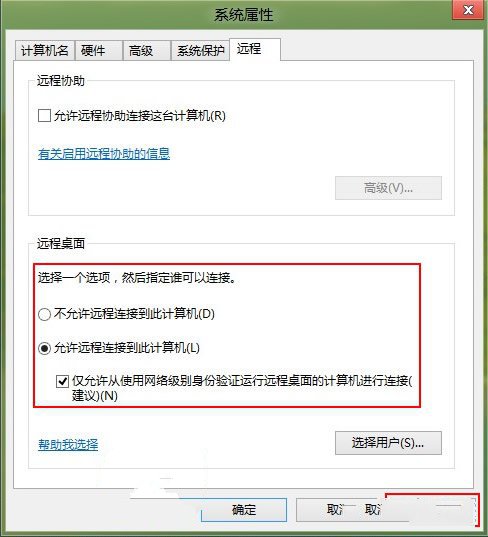
  2. 「遠端」分頁 → 勾選:
    ✅ 允許遠端連線到此電腦
    ✅ 僅允許從使用網路層級驗證執行遠端桌面的電腦連線 (NLA,更安全)。
  3. 按「套用」→「確定」。
系統內容進階系統設定 系統屬性遠端分頁 勾選允許遠端連線與 NLA

連線端: Windows 內建「遠端桌面連線」(mstsc) 輸入目標 IP/電腦名稱;macOS 用 Microsoft Remote Desktop (App Store);行動裝置用 Microsoft Remote Desktop App。注意: 家用版無遠端桌面伺服器功能,需升級專業版或使用 TeamViewer/AnyDesk 等第三方工具。更多遠端桌面設定與安全性教學,請關注電腦教程專欄,歡迎加入電腦辦公群(189034526)。

Copyright © Windows教程網 All Rights Reserved