Windows 8 安裝 .NET Framework 3.5.1 常遇錯誤 0x800F0906,線上安裝失敗、獨立安裝包仍導向 Windows Update 失效。根因:Windows 8 將 .NET 3.5 作為「隨選功能」需從安裝媒體來源檔案安裝。使用 DISM 指定來源路徑即可離線安裝成功。
sources\sxs 資料夾至本機 (例:D:\sources\sxs)。dism.exe /online /enable-feature /featurename:NetFX3 /Source:D:\sources\sxs參數說明:
/online:對線上執行中的作業系統操作。/enable-feature:啟用功能。/featurename:NetFX3:功能名稱 (.NET Framework 3.5 包含 2.0/3.0/3.5)。/Source:指定功能負載來源路徑 (含 sxs 資料夾的父目錄)。Deployment Image Servicing and Management tool
Version: 6.2.8250.0
Image Version: 6.2.8250.0
Enabling feature(s)
[==========================100.0%==========================]
The operation completed successfully.約 1-2 分鐘完成。之後 91 手機助手等需 .NET 3.5 的軟體即可正常執行。
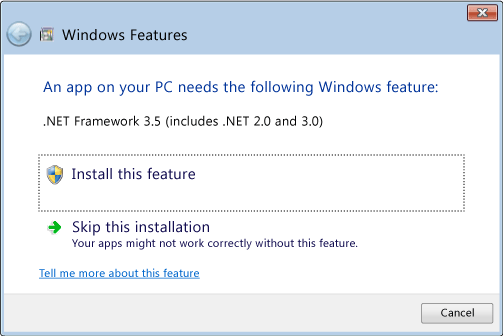
DISM 離線指定來源法為最直接有效解法,適用 Windows 8/8.1/10/11 所有版本。