Windows XP Windows 7 Windows 2003 Windows Vista Windows 綜合教學 Linux 系統教學
Windows 10 Windows 8 Windows 2008 Windows NT Windows Server 電腦軟體教學

Win8/Win8.1 IE10/IE11 無法顯示 Flash 怎麼辦?四大解決方案完整圖解

編輯:Win8 系統基礎知識

Windows 8 內建 IE10/IE11 並整合 Adobe Flash Player,但常因安全性設定、ActiveX 篩選、區域安全等級或外掛程式狀態導致 Flash 無法播放。以下提供四種常見解決方法。

現象

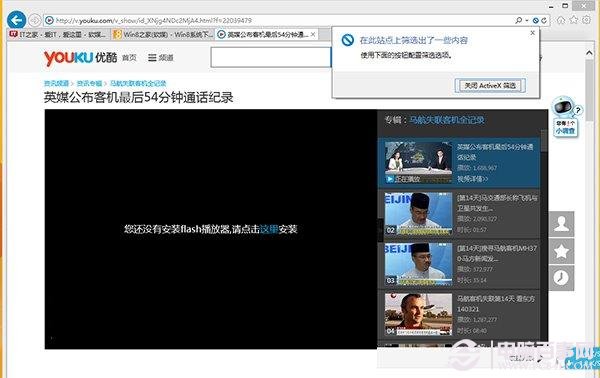
IE 地址列右側出現藍色禁止圖示,Flash 內容空白或提示需安裝外掛。
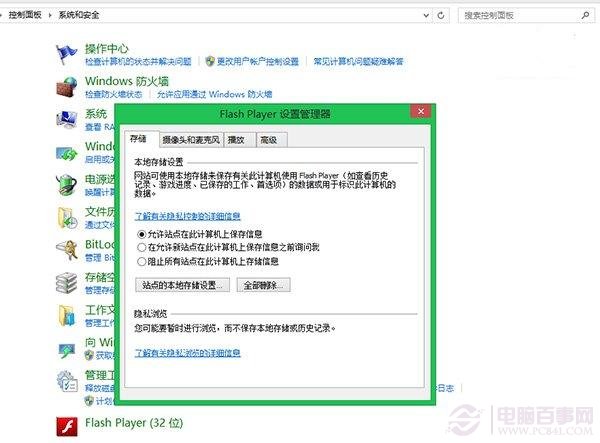
Flash Player 設定管理員

方法一:關閉 ActiveX 篩選

  1. IE 右上角工具圖示 → 安全性 → 取消勾選「ActiveX 篩選」。
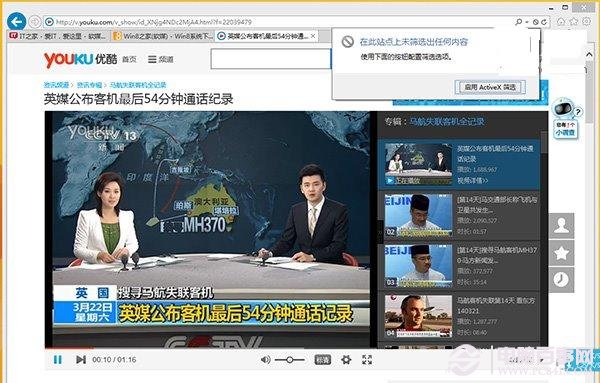
    關閉 ActiveX 篩選
  2. 或點擊地址列右側藍色圖示直接選「關閉 ActiveX 篩選」。
    地址列關閉篩選

方法二:啟用 Flash Player 增益集

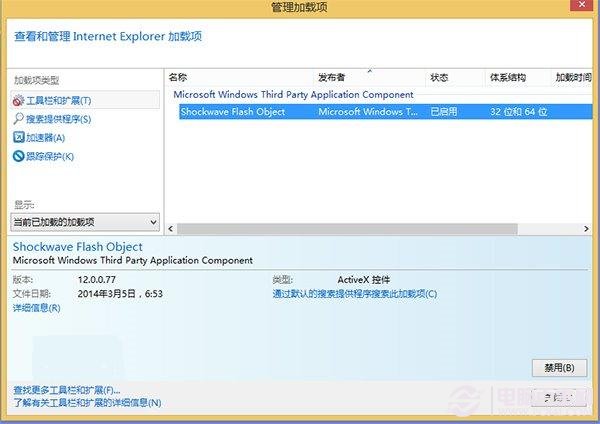
  1. IE → 工具 → 管理增益集 → 工具列與延伸模組。
    管理增益集
  2. 找到 "Shockwave Flash Object" (Adobe Flash Player) → 確認狀態為「已啟用」,否則右鍵選「啟用」。

方法三:降低區域安全性等級

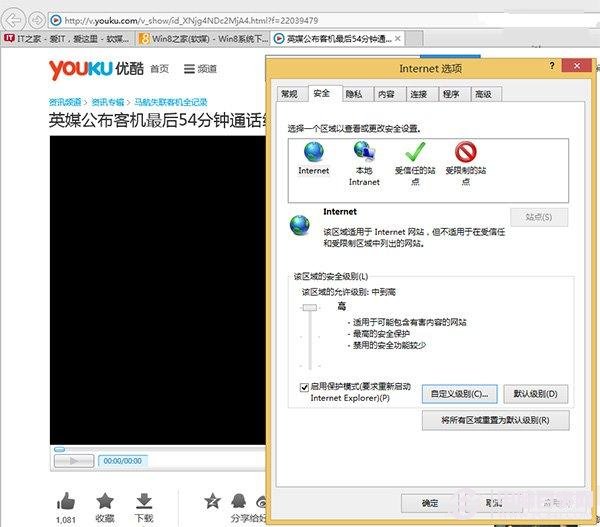
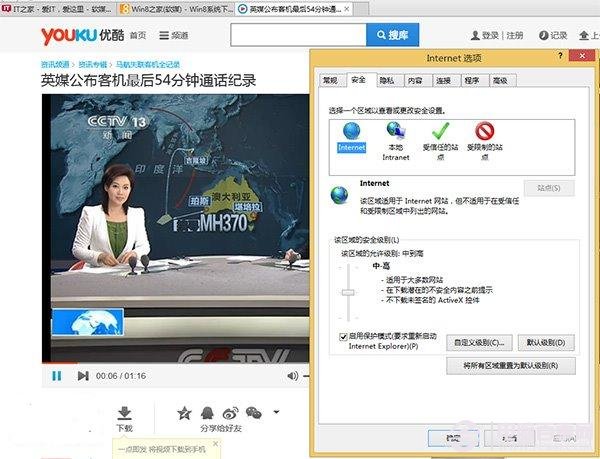
  1. IE → 工具 → 網際網路選項 → 安全性索引標籤。
    安全性索引標籤
  2. 選取「網際網路」區域 → 將安全性等級調整為「中-高」(預設) 或「中」,避免「高」等級阻擋 Flash 載入。
    調整安全性等級

方法四:重新安裝 IE 版 Flash Player

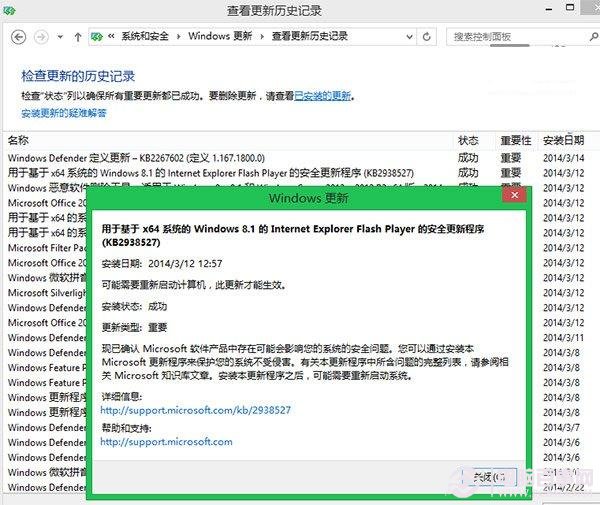
  1. Windows Update 每月提供 Flash 安全性更新,執行更新即可。
  2. 或至 Adobe 官網下載 IE 版 Flash Player 離線安裝包手動安裝。
    Flash Player 下載頁面
  3. 可在控制台 → 系統與安全性 → Windows Update → 檢視更新歷程記錄 查詢目前安裝版本。
    檢視更新歷程

依序嘗試上述方法,多數情況可恢復 Flash 正常播放。若問題持續,建議檢查是否有安全軟體攔截或嘗試重設 IE 進階設定。

Copyright © Windows教程網 All Rights Reserved