Windows XP Windows 7 Windows 2003 Windows Vista Windows 綜合教學 Linux 系統教學
Windows 10 Windows 8 Windows 2008 Windows NT Windows Server 電腦軟體教學

Win8 如何關閉索引服務?減少硬碟讀寫提升效能

編輯:Windows 8 系統介紹

Win8 索引服務會即時掃描檔案變更建立搜尋索引,對 SSD 或舊式硬碟造成持續讀寫負擔,且多數使用者較少使用開始畫面搜尋功能。關閉不必要的索引位置或完全停用索引服務,可減少硬碟負載延長壽命。

操作步驟

  1. 按 Win+X 選擇 「控制台」,檢視模式切為 「小圖示」。
  2. 點選 「索引選項」。
  3. 點選視窗下方 「修改」 按鈕,取消勾選不需索引的磁碟機/資料夾(建議保留使用者資料夾、文件庫,取消整顆 D 槽等資料盤)。
  4. 按確定回到主視窗,點選 「進階」 → 「索引設定」索引標籤,取消勾選 「編製加密檔案索引」 等非必要選項。
  5. 若要完全停用索引服務:
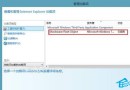
    按 Win+R 輸入 services.msc,找到 Windows Search 服務,啟動類型改為 「停用」,服務狀態點選 「停止」。

索引選項修改與進階設定

完全停用 Windows Search 服務後,開始畫面搜尋、檔案總管搜尋將變為即時掃描模式(較慢),但能徹底消除背景索引寫入。視個人使用習慣權衡:常用搜尋者建議保留服務但精簡索引範圍;極少搜尋者可完全停用。

Copyright © Windows教程網 All Rights Reserved