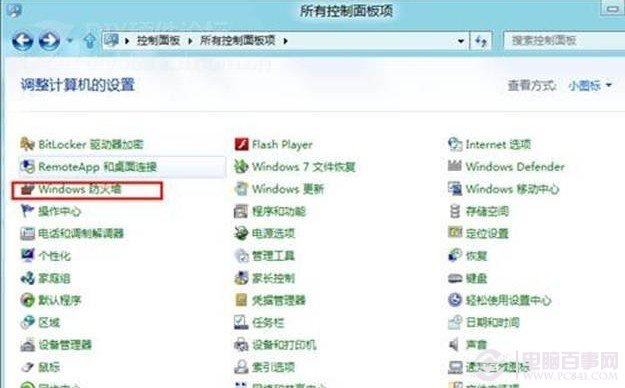
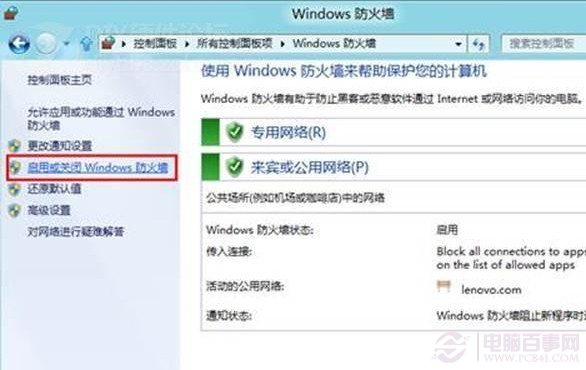
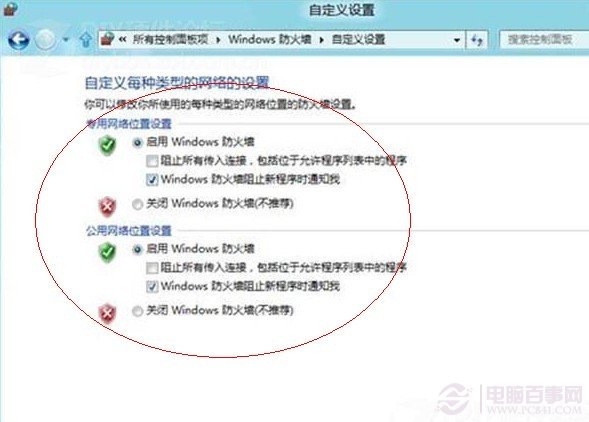
Windows 8 防火牆支援私人/公用網路分別管理,若已安裝第三方安全套裝軟體,建議關閉系統防火牆避免衝突並釋放資源。
功能特色:Win8 防火牆比 Win7/XP 強大,支援針對不同網路位置 (私人/公用/網域) 套用獨立規則集。
建議:有專業防毒軟體時關閉系統防火牆;無第三方防護請保持啟用。
Windows RT 與 Windows 8 差異大解析:ARM 平台專屬輕量系統
Win8.1 輕鬆玩轉內建 SkyDrive (OneDrive) 雲端硬碟:四大實戰操作技巧
Win8 SkyDrive 上傳與建立文件完整教學
Windows 8 系統維護三大實用技巧
Win8 真的很難適應?資深用戶實測:堅持 6 週後你會愛上它
Win8 系統備份與還原全攻略:檔案歷程、系統映像、修復光碟
Win8 讀卡器讀不到記憶卡?四大原因與對應解法
Windows 8 查看 Metro 應用安裝位置與大小:電腦設定查大小、WindowsApps 資料夾權限查路徑、PowerShell 查完整資訊