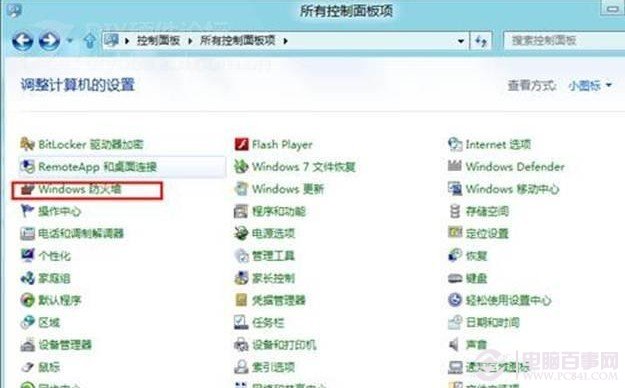
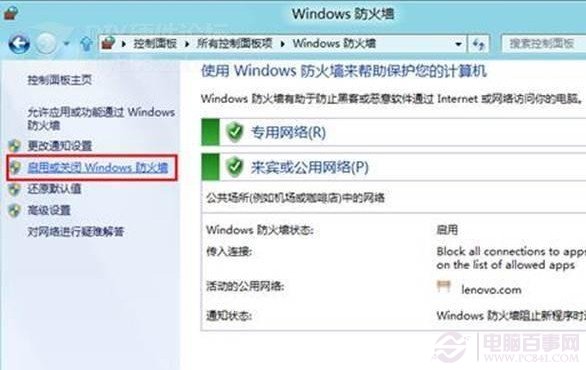
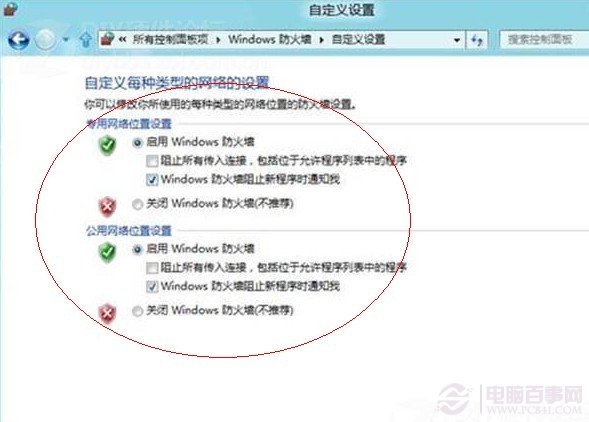
Windows 8 內建防火牆功能強化,支援分別針對「私人網路」與「公用網路」設定規則。若已安裝第三方安全軟體,建議關閉系統防火牆以節省資源。
Win8 防火牆增強特色:獨立管理私人/公用網路設定檔,可針對不同網路環境套用不同防護規則,比 Win7/XP 更彈性。
建議:安裝專業防毒軟體(含防火牆模組)時關閉系統防火牆;未安裝第三方防護時請保持啟用。
Win8 開機直進傳統桌面:修改註冊表 Shell 值一步到位
Win8「相片」磚提示「所有相片來源都被隱藏」?三勾選項立即恢復圖庫顯示
Win8 開機黑屏等待才進入桌面?Windows Font Cache 服務設為自動啟動修復
Windows 8 停用強制驅動程式簽名命令列指令
Win8/8.1 藍牙顯示「脫機」?雙擊設備啟用服務即可恢復
Windows 8.1 快速切換使用者帳戶:免登出、免重開機
Win8.1 如何查看網卡 MAC 地址?ipconfig /all 指令最快
微軟釋出補丁延長 Windows 8 開發者預覽版授權至 2013 年 1 月