Windows XP Windows 7 Windows 2003 Windows Vista Windows 綜合教學 Linux 系統教學
Windows 10 Windows 8 Windows 2008 Windows NT Windows Server 電腦軟體教學

Windows 8 重置 ClearType 文字微調器至預設值登錄表法

編輯:Windows 8 系統介紹

ClearType 調整後效果不佳,透過登錄表兩處修改完整重置

Windows 8 的 ClearType 文字微調器調整後若不滿意,介面無「重置」按鈕。經測試,唯有修改登錄表兩處鍵值才能真正還原預設。

重置步驟

  1. 開啟登錄編輯器 (Win+R → regedit)。
  2. 第一處:
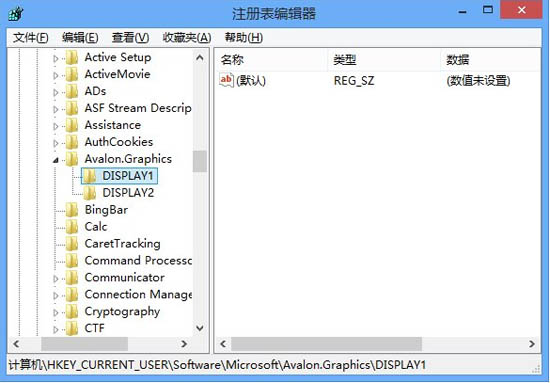
    路徑:HKEY_CURRENT_USER\Software\Microsoft\Avalon.Graphics
    下方會有 DISPLAY1、DISPLAY2... 對應各顯示器。
    逐一點入每個 DISPLAYx,刪除右側所有數值(保留「預設」值)。
    未調整過的狀態應僅剩「預設」值。
  3. 第二處:
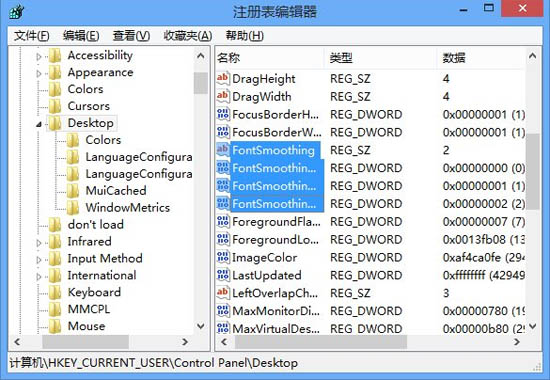
    路徑:HKEY_CURRENT_USER\Control Panel\Desktop
    找到四個以 FontSmoothing 開頭的值,依序設為:
    FontSmoothing = 2
    FontSmoothingType = 0
    FontSmoothingGamma = 1
    FontSmoothingOrientation = 2
  4. 登出目前使用者並重新登入(或重開機),ClearType 即還原為系統預設狀態。

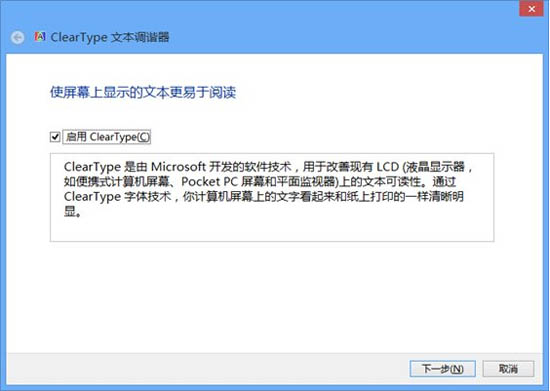
ClearType 文字微調器介面

Avalon.Graphics DISPLAY 正常狀態

Control Panel Desktop FontSmoothing 值

補充說明

  • ClearType 設定為每用戶獨立,登出/登入即生效,無需重開機。
  • 建議微軟未來版本在介面提供「重置為預設」按鈕,提升易用性。
  • 若使用多顯示器,需對每個 DISPLAYx 都執行刪除動作。
Copyright © Windows教程網 All Rights Reserved