Windows XP Windows 7 Windows 2003 Windows Vista Windows 綜合教學 Linux 系統教學
Windows 10 Windows 8 Windows 2008 Windows NT Windows Server 電腦軟體教學

Windows 8 設定 Chrome 為預設瀏覽器:透過控制台預設程式關聯

編輯:Windows 8 系統介紹

前言

Windows 8 消費者預覽版中,Chrome 點擊「設為預設瀏覽器」無效,需透過控制台「預設程式」手動關聯。同樣適用於其他瀏覽器、播放器等應用程式。
設定步驟

  1. 滑鼠移至螢幕右上角 → 「設定」 → 「控制台」。
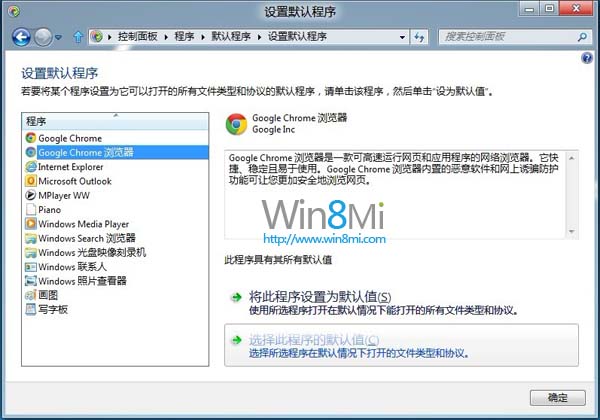
  2. 「程式」 → 「預設程式」 → 「設定預設程式」。
  3. 設定預設程式介面
  4. 左側清單選擇「Google Chrome」 → 右側點擊「將此程式設為預設值」 → 「確定」。

完成後,HTML、HTM、HTTP、HTTPS 等協定與副檔名全數關聯至 Chrome。

補充:自訂特定協定關聯

若僅想讓 Chrome 開啟網頁連結,保留 PDF 給其他閱讀器:
「預設程式」 → 「依副檔名或通訊協定設定關聯」 → 逐項選擇 .htm、.html、HTTP、HTTPS → 「變更程式」選擇 Chrome。

結語

Windows 8 將預設程式管理集中於控制台,透過「設定預設程式」一鍵關聯所有相關類型,比應用程式內建按鈕更徹底、可靠。Chrome、Firefox、Opera、PotPlayer、VLC 等均適用此法。


Copyright © Windows教程網 All Rights Reserved