Windows XP Windows 7 Windows 2003 Windows Vista Windows 綜合教學 Linux 系統教學
Windows 10 Windows 8 Windows 2008 Windows NT Windows Server 電腦軟體教學

Win8.1 Update更新失敗錯誤代碼修復:DISM兩行指令解決80070020/80073712/0x800f081f

編輯:Windows 8 系統介紹

Windows 8.1 Update(KB2919355)推送初期,大量使用者遭遇錯誤代碼80070020、80073712、0x800f081f導致安裝失敗。微軟社區專家提供DISM指令修復方案,僅需兩行指令即可清理元件存儲並重新獲取更新。

修復步驟

  1. 以系統管理員身分開啟「命令提示字元」(Win+X → 命令提示字元(系統管理員))。
  2. 執行第一條指令,移除損壞的更新套件:
dism /online /remove-package /packagename:Package_for_KB2919355~31bf3856ad364e35~amd64~~6.3.1.14

(注意:套件名稱需依系統架構與版本確認,可先用 dism /online /get-packages | find "KB2919355" 查詢完整名稱)
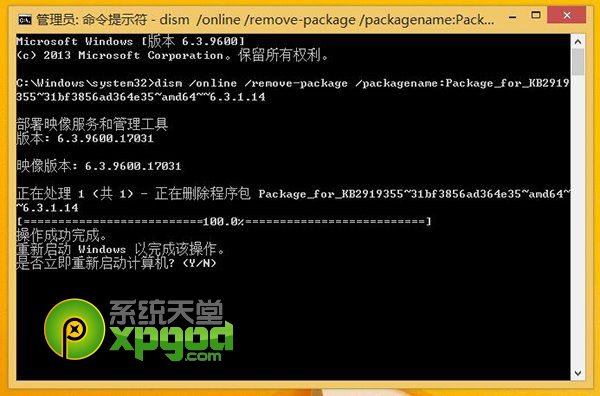
  1. 完成後需手動重開機完成設定。
  2. 重新進入系統,再次以管理員身分開啟CMD,執行清理指令:
dism /online /cleanup-image /startcomponentcleanup
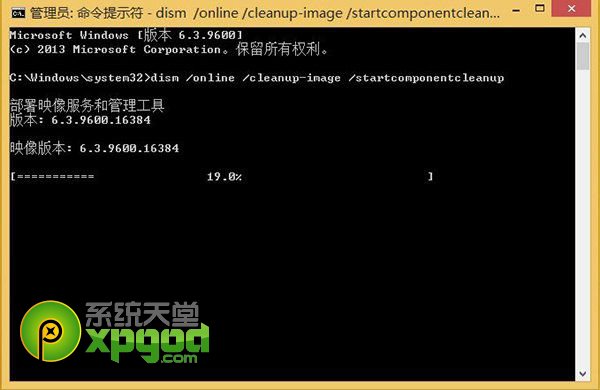
  1. 完成後,開啟Windows Update重新檢查並安裝Win8.1 Update。

原理說明

  • /remove-package 強制解除安裝損壞的更新套件,解決檔案鎖定、版本衝突問題。
  • /startcomponentcleanup 清理元件存儲中已取代、未使用的檔案,釋放空間並修正不一致狀態。

適用錯誤代碼

  • 0x80070020 (檔案被其他程序鎖定)
  • 0x80073712 (元件存儲損壞)
  • 0x800f081f (來源檔案遺失)
  • 其他DISM相關更新失敗代碼

若仍失敗

  • 嘗試 sfc /scannow 修復系統檔案。
  • 下載獨立安裝包(MSU)手動安裝 KB2919355。
  • 使用微軟官方「Windows Update 疑難排解工具」。
  • 最終手段:備份資料乾淨重裝整合版映像。

此法為社區驗證高成功率方案,建議優先嘗試。

Copyright © Windows教程網 All Rights Reserved