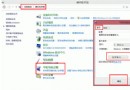
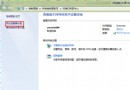
Win8.1 新建使用者帳戶後,內建 Modern 應用程式 (市集、相片、設定等) 點擊無反應,事件檢視器記錄「此應用程式不支援指定的合約或未安裝」。原因多為第三方安全軟體修改註冊表或 AppRepository 資料夾遺失。
C:\Users\<新帳戶名>\AppData\Local\Packages\WinStore_cw5n1h2txyewyWinStore_cw5n1h2txyewy 資料夾複製到有問題帳戶的同路徑下覆蓋。C:\ProgramData\Microsoft\Windows\AppRepository 資料夾不存在,手動建立。powershell -ExecutionPolicy Unrestricted Add-AppxPackage -DisableDevelopmentMode -Register $Env:SystemRoot\WinStore\AppxManifest.xml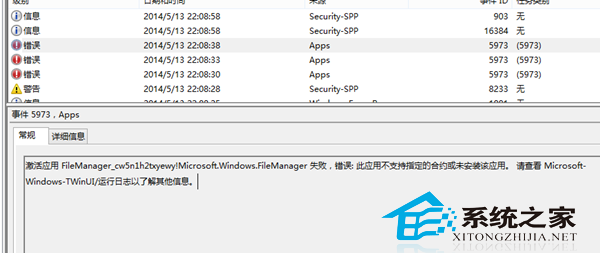
建議暫時停用第三方防毒/防火牆軟體再嘗試上述修復,避免再次被攔截修改。
Windows 8 Metro 版 IE10 觸控手勢與快速鍵
Windows 8 已曝光新功能總覽 SmartScreen、應用商店、HistoryVault 等
Win8 升級後無法刪除 Windows.old?磁碟清理輕鬆移除舊系統資料夾
Win8 顯示微調與外設驅動識別:解析度/DPI/ClearType/色彩校準、未知裝置手動指定驅動
Windows 8 內建 Microsoft 拼音無法刪除?新增英文語言降序法移除教學
安裝 Win8 後無法進入 BIOS?關閉快速啟動 + 斷電重啟恢復 BIOS 熱鍵
Windows 8 RP 版入门指南:开始屏幕、应用管理、控制面板、Media Center、DVD 播放、关机六大核心操作详解