Windows XP Windows 7 Windows 2003 Windows Vista Windows 綜合教學 Linux 系統教學
Windows 10 Windows 8 Windows 2008 Windows NT Windows Server 電腦軟體教學

Win7 開啟 PDF 出現關聯錯誤?刪除登錄檔 UserChoice 與 OpenWithList 重設開啟方式

編輯:Win7 常見問題解答

Windows 7 雙擊 PDF 檔案若跳出「找不到關聯程式」或開啟錯誤軟體,是因為檔案關聯登錄值損壞。刪除 HKEY_CURRENT_USER\Software\Microsoft\Windows\CurrentVersion\Explorer\FileExts\.pdf 下的 UserChoice 機碼與 OpenWithList 多餘值,即可重設開啟方式。
修復步驟

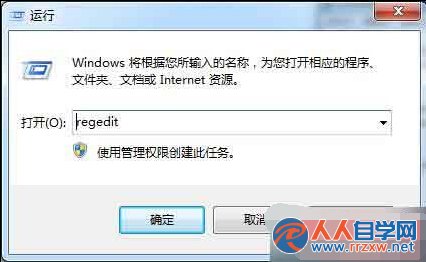
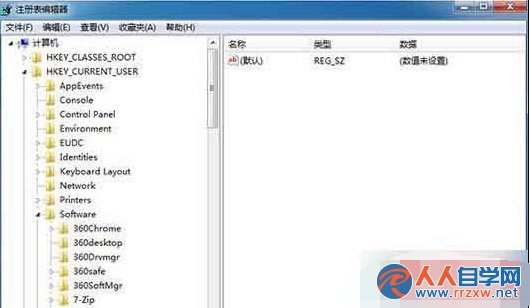
  1. Win+R → regedit 開啟登錄編輯器。
    開啟登錄編輯器
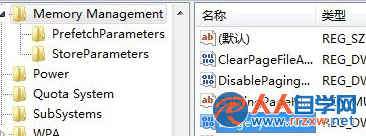
  2. 定位至:
    HKEY_CURRENT_USER\Software\Microsoft\Windows\CurrentVersion\Explorer\FileExts\.pdf
    定位 PDF 關聯機碼
  3. 右側窗格:
    • 刪除 OpenWithList 下除 (預設) 外的所有值。
    • 右鍵刪除整個 UserChoice 機碼。
  4. 關閉登錄編輯器,雙擊任意 PDF 檔,Windows 會彈出「開啟方式」對話框,選擇慣用閱讀器(如 Adobe Reader、Foxit、Edge)並勾選「永遠使用此應用程式開啟 .pdf 檔案」即可永久修復。

此法同樣適用於其他副檔名關聯錯誤(.docx、.jpg 等),只需將路徑中的 .pdf 改為對應副檔名。

Copyright © Windows教程網 All Rights Reserved