在 Win7 系統下打開網頁遊戲或視頻時,若提示「Flash Player 版本過低」導致畫面無法顯示,只需通過控制面板更新 Flash Player 即可解決。Adobe 已於 2020 年底停止支援 Flash,但部分舊版網頁應用仍依賴它。本文詳解 Win7 系統下更新 Flash Player 的標準流程。
操作步驟
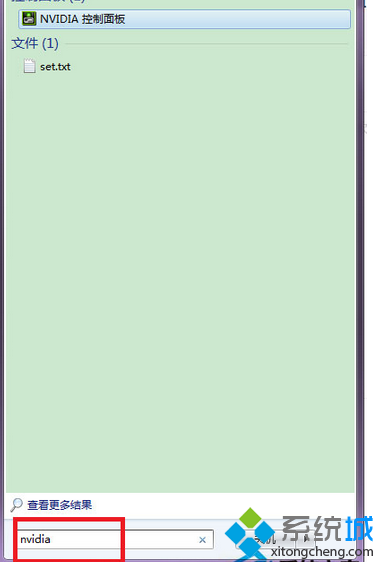
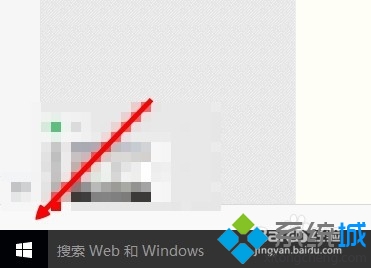
- 點擊「開始」按鈕 → 選擇「所有程序」→「Windows 系統」→「控制面板」。
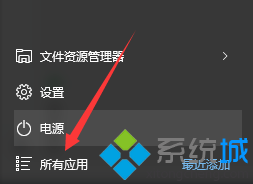
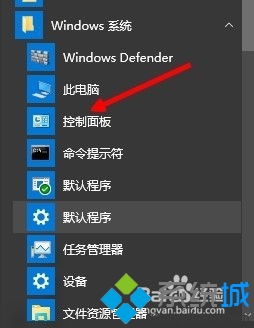
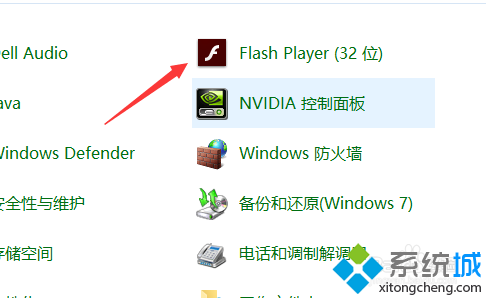
- 控制面板右上角「查看方式」改為「大圖標」,找到並點擊「Flash Player(32 位)」或「Flash Player」圖標。

- 在 Flash Player 設置管理器中,切換至「更新」選項卡。
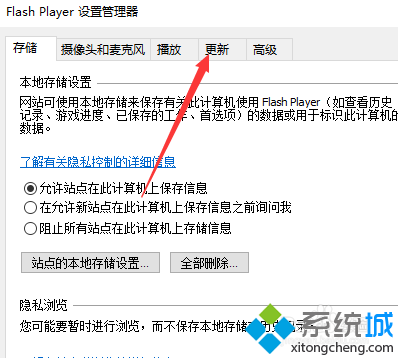
- 點擊「立即檢查」,系統將自動檢測並下載安裝最新版本。
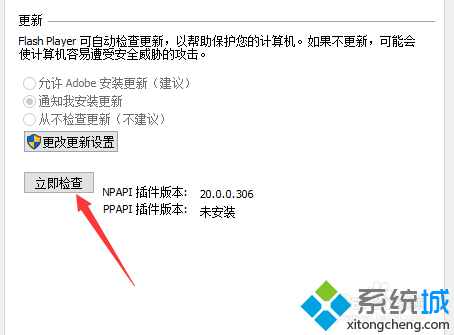
- 更新完成後重啟瀏覽器,重新訪問網頁遊戲/視頻頁面驗證。
重要提示
- Adobe 已停止支援 Flash Player:自 2021 年 1 月 12 日起阻止 Flash 內容運行,官方下載頁面已關閉。上述方法僅適用於舊版系統殘留組件的更新。
- 現代瀏覽器已內建移除 Flash:Chrome 88+、Edge 88+、Firefox 85+ 均已徹底移除 Flash 支援。
- 替代方案:若為舊版企業內部系統,可嘗試使用 Ruffle(Flash 模擬器)、CheerpJ(Java Applet 轉換)或聯繫開發商遷移至 HTML5/WebGL。
- 安全風險:繼續使用 Flash 存在嚴重安全漏洞,強烈建議遷移至現代技術棧。
雖然 Flash 已成歷史,但針對必須維護的舊系統,通過控制面板更新殘留組件仍是最後的應急手段。