批次檔是 Windows 自動化腳本,將多行 CMD 指令存成 .bat 檔,雙擊即可連續執行。本文教學兩種建立方法:另存為法(推薦)、重新命名法,並附贈「系統垃圾清理」實用腳本範例。
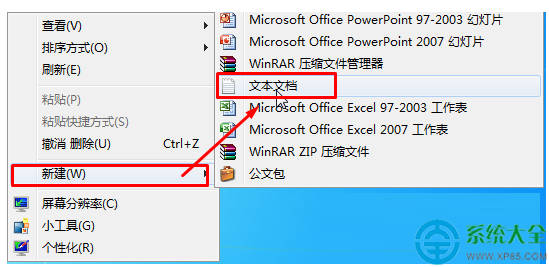
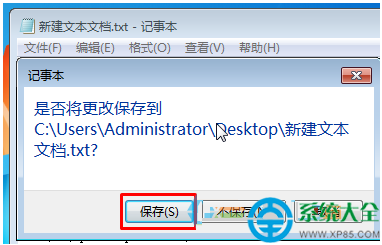
cleanup.bat(副檔名必須是 .bat) → 「儲存」。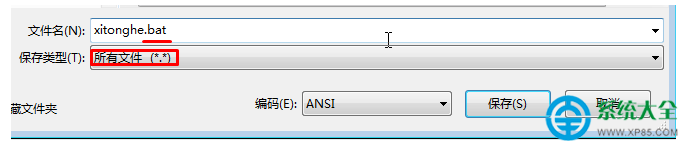
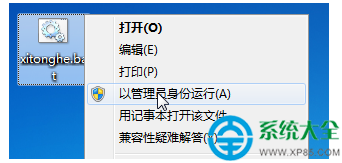
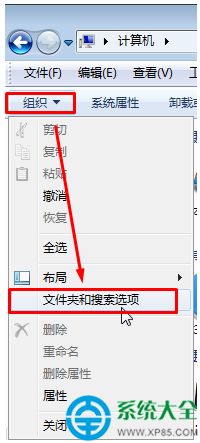
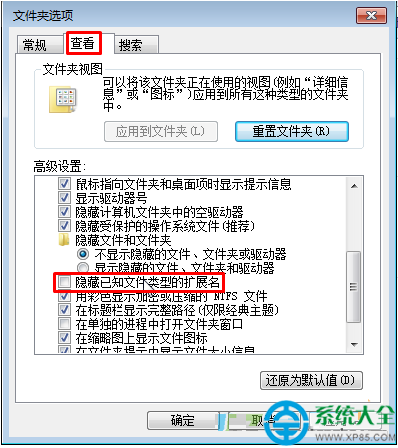
新增文字文件.txt → 「重新命名」 → 改為 cleanup.bat → 按 Enter → 確認警告選「是」。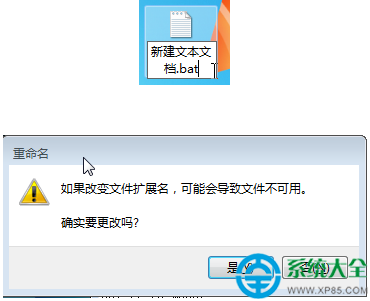
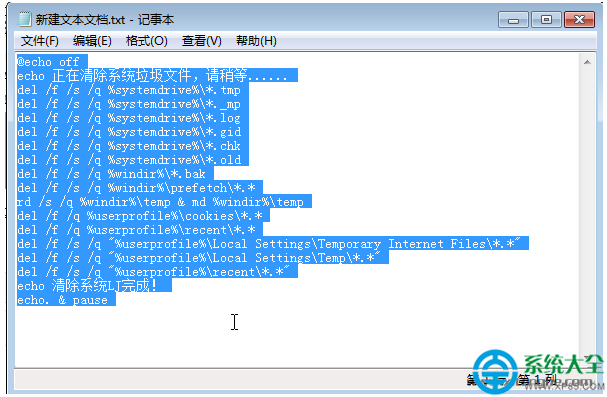
@echo off
echo 正在清除系統垃圾檔案,請稍等......
del /f /s /q %systemdrive%\*.tmp
del /f /s /q %systemdrive%\*._mp
del /f /s /q %systemdrive%\*.log
del /f /s /q %systemdrive%\*.gid
del /f /s /q %systemdrive%\*.chk
del /f /s /q %systemdrive%\*.old
del /f /s /q %windir%\*.bak
del /f /s /q %windir%\prefetch\*.*
rd /s /q %windir%\temp & md %windir%\temp
del /f /q %userprofile%\cookies\*.*
del /f /q %userprofile%\recent\*.*
del /f /s /q "%userprofile%\Local Settings\Temporary Internet Files\*.*"
del /f /s /q "%userprofile%\Local Settings\Temp\*.*"
del /f /s /q "%userprofile%\recent\*.*"
echo 清除系統垃圾完成!
echo. & pause
常用批次指令速查:
@echo off:關閉指令回顯pause:暫停,按任意鍵繼續cls:清除畫面rem 註解:註解行if exist 檔案 (指令):條件判斷