Windows XP Windows 7 Windows 2003 Windows Vista Windows 綜合教學 Linux 系統教學
Windows 10 Windows 8 Windows 2008 Windows NT Windows Server 電腦軟體教學

Win7 安裝程式報錯 0xc8000222 解決法:重命名 SoftwareDistribution 資料夾

編輯:Win7 系統應用技巧

執行 Windows 7 系統更新或安裝特定程式時出現錯誤代碼 0xc8000222,主因是 Windows Update 元件資料夾 SoftwareDistribution 內的暫存檔損壞或鎖定。透過停止 WuAuServ 服務、重命名該資料夾、重新啟動服務,可強制系統重建乾淨的更新暫存環境,解決錯誤。

操作步驟

  1. 以 系統管理員身分 開啟「命令提示字元」(開始 → 所有程式 → 附屬應用程式 → 右鍵「命令提示字元」→「以系統管理員身分執行」)。
    輸入指令停止 Windows Update 服務:
    net stop WuAuServ
    按 Enter。若提示「發生系統錯誤 5」,表示未以管理員身分執行,請重新以管理員身分開啟。
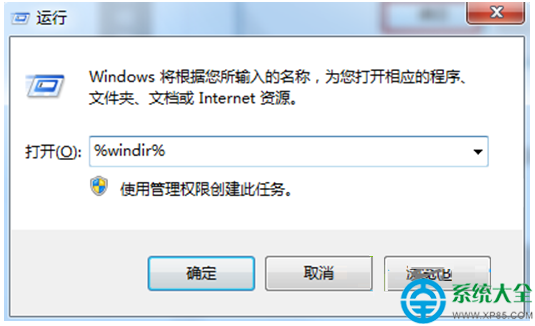
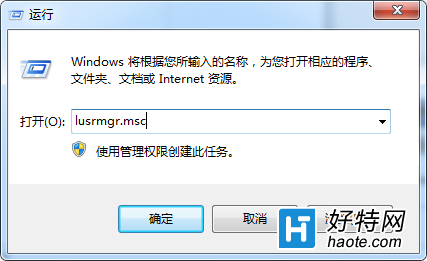
  2. 按 Win+R 輸入 %windir% 開啟 Windows 目錄(通常為 C:\Windows)。
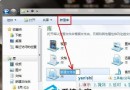
  3. 找到 SoftwareDistribution 資料夾,將其重新命名為 SDold(或任意其他名稱)。
  4. 再次以系統管理員身分開啟「命令提示字元」,輸入指令重新啟動 Windows Update 服務:
    net start WuAuServ
    按 Enter。系統會自動重建新的 SoftwareDistribution 資料夾與內部結構。

以管理員身分執行net stop

開啟%windir%目錄

原理說明

  • SoftwareDistribution 存放 Windows Update 下載的更新套件、安裝記錄、臨時檔案。
  • 長期累積或中斷更新導致檔案損壞、索引錯誤,安裝程式讀取時回報 0xc8000222 (CBS_E_INVALID_PACKAGE / 套件無效)。
  • 重命名舊資料夾等同於清除所有暫存更新狀態,服務重啟後從頭建立乾淨環境。

後續建議

  • 重開機後進入 Windows Update 檢查更新,確認可正常下載安裝。
  • 若問題重複發生,考慮執行 sfc /scannow 修復系統檔案,或使用 Microsoft 官方「Windows Update 疑難排解工具」。
  • 舊資料夾 SDold 確認新環境穩定後可手動刪除釋放空間(通常幾百 MB 至數 GB)。

四步指令操作,快速修復 Win7 更新元件損壞導致的 0xc8000222 安裝失敗錯誤。

Copyright © Windows教程網 All Rights Reserved