Windows XP Windows 7 Windows 2003 Windows Vista Windows 綜合教學 Linux 系統教學
Windows 10 Windows 8 Windows 2008 Windows NT Windows Server 電腦軟體教學

Win7 安全中心服務異常修復:啟動 Security Center 服務恢復防護功能

編輯:Win7 系統應用技巧

Windows 7 安全中心監控防火牆、防毒軟體、自動更新等關鍵防護狀態。若 Security Center 服務停止或啟動類型錯誤,系統防護將失效且不發出警示。本文教您檢查並修復安全中心服務。

修復步驟

步驟 1:開啟服務管理員

按 Win + R → 輸入 services.msc → 按 Enter。
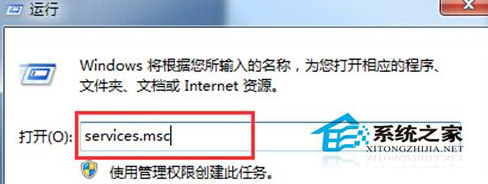
開啟服務管理員

步驟 2:設定 Security Center 服務

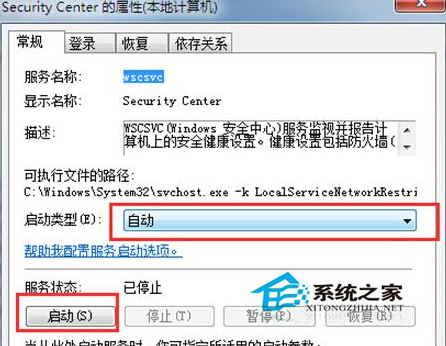
  • 在服務清單中找到 Security Center
  • 雙擊開啟屬性視窗
  • 啟動類型:改為「自動」
  • 服務狀態:點擊「啟動」按鈕
  • 點擊「確定」儲存

Security Center 服務屬性

相依服務檢查(若仍無法啟動)

Security Center 相依以下服務,請確認其均為「執行中」且「自動」啟動:

  • Windows Management Instrumentation (WMI)
  • Remote Procedure Call (RPC)
  • Windows Event Log

進階修復(服務損壞時)

  1. 以系統管理員身分開啟命令提示字元
  2. 執行:sfc /scannow 掃描修復系統檔案
  3. 執行:DISM /Online /Cleanup-Image /RestoreHealth(Win7 需安裝 DISM 工具)
  4. 重新開機驗證

驗證防護狀態

  1. 控制台 →「系統與安全性」→「檢視電腦狀態」
  2. 確認「網路防火牆」、「病毒防護」、「自動更新」等項目顯示「開啟」綠色狀態
  3. 若防毒軟體未被識別,請更新防毒軟體至最新版

確保 Security Center 服務正常運行,是 Windows 7 維持基礎安全防護的關鍵環節,建議定期檢查服務狀態。

Copyright © Windows教程網 All Rights Reserved