Win7 旗艦版滑鼠右鍵點擊桌面空白處,選單需等待數秒才彈出,嚴重影響操作流暢度。本文教您透過修改登錄檔調整懸停延遲時間,徹底解決顯示延遲問題。
Windows Registry Editor Version 5.00

[HKEY_CURRENT_USER\Control Panel\Mouse]
"MouseHoverTime"="100"

[HKEY_LOCAL_MACHINE\SYSTEM\CurrentControlSet\Control\SecurePipeServers\winreg]
"RemoteRegAccess"=dword:00000001

[HKEY_CURRENT_USER\Software\Microsoft\Windows\CurrentVersion\Explorer\Advanced]
"DesktopLivePreviewHoverTime"=dword:000000f4
fix_delay.reg)。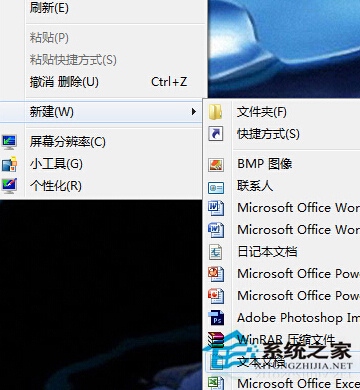
原理:將預設 400 毫秒的懸停延遲 (MouseHoverTime) 縮短為 100 毫秒,並調整工作列預覽延遲 (DesktopLivePreviewHoverTime),大幅提升介面回應速度。