Win7 預設藍色登錄背景千篇一律。透過註冊表啟用 OEM 背景機制,將自訂圖片置於指定系統目錄,即可實現個性化登錄界面,重啟生效。
圖文操作步驟
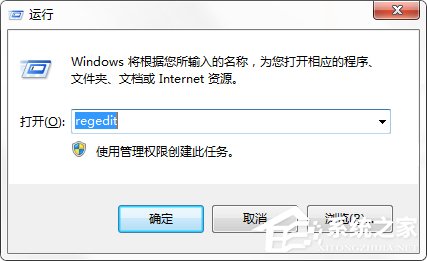
- Win+R → `regedit` → 確定
- 定位至:`HKEY_LOCAL_MACHINE\SOFTWARE\Microsoft\Windows\CurrentVersion\Authentication\LogonUI\Background`
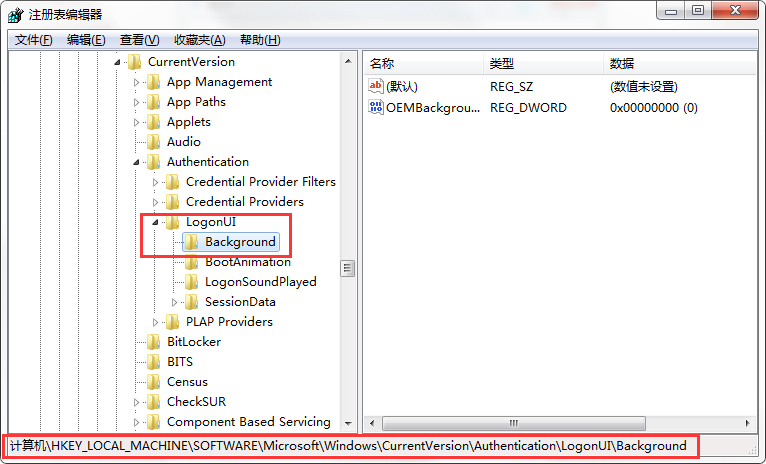
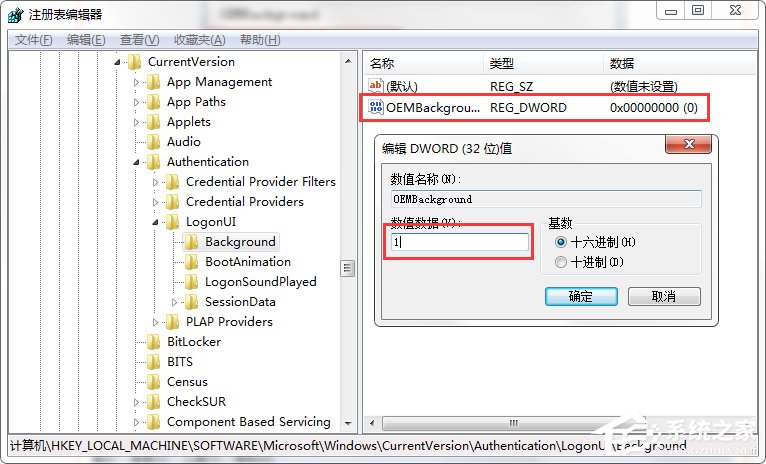
- 右側找 `OEMBackground` (無則新建 DWORD) → 雙擊修改數值為 `1` → 確定
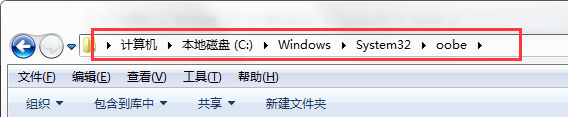
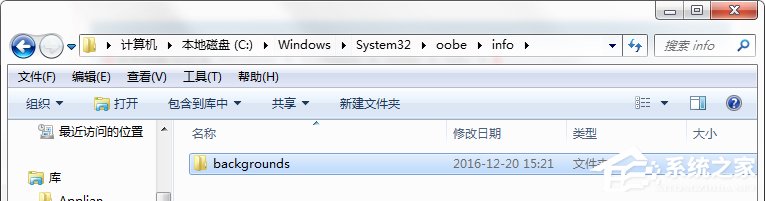
- 檔案總管前往:`C:\Windows\System32\oobe`
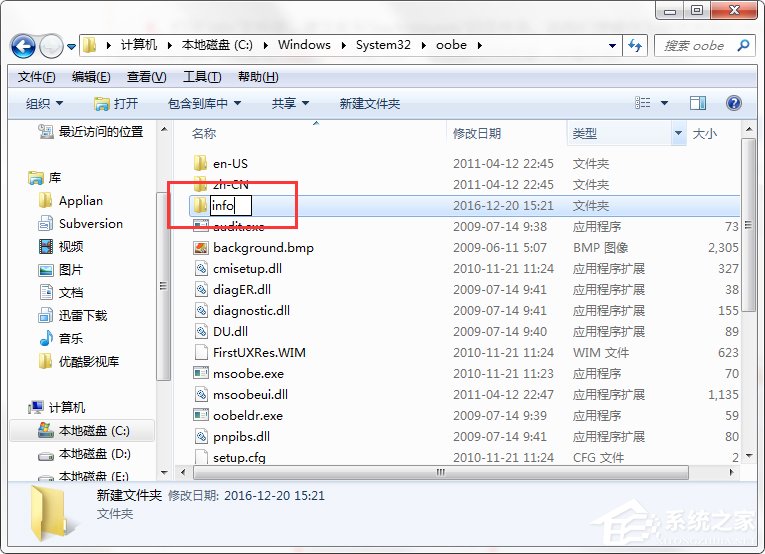
- 新建資料夾 `info` → 進入再新建 `backgrounds`
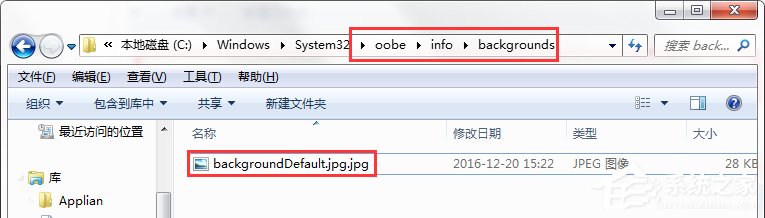
- 準備 **JPG 格式** 背景圖片 → 調整解析度 **1024×768** → 檔案大小 **< 250 KB** (關鍵限制!) → 重命名為 `backgroundDefault.jpg` → 放入 `backgrounds` 資料夾
- 重啟電腦,登錄界面即顯示自訂背景
進階:多解析度自適應背景 (支援不同螢幕比例)
在 `backgrounds` 資料夾放入對應解析度命名檔案,系統自動匹配最佳:
- `backgroundDefault.jpg` (通用回退)
- `background768x1280.jpg` / `background900x1440.jpg` / `background960x1280.jpg` / `background1024x1280.jpg` / `background1280x1024.jpg` / `background1024x768.jpg` / `background1280x768.jpg` / `background1366x768.jpg` 等
命令列一鍵部署 (適合批次/無人值守)
@echo off
reg add "HKLM\SOFTWARE\Microsoft\Windows\CurrentVersion\Authentication\LogonUI\Background" /v OEMBackground /t REG_DWORD /d 1 /f
md "C:\Windows\System32\oobe\info\backgrounds" 2>nul
copy /y "C:\Path\To\Your\backgroundDefault.jpg" "C:\Windows\System32\oobe\info\backgrounds\backgroundDefault.jpg"
echo 完成,重啟生效
pause
⚠️ 關鍵限制與避坑
- 檔案大小必須 < 250 KB,超過將無法顯示 (系統讀取限制)
- 僅支援 JPG 格式,PNG/BMP/GIF 無效
- 解析度建議 1024×768 (4:3),寬屏圖片會被拉伸/裁切,建議準備多解析度版本
- Win10/Win11 不支援此機制**,改用「設定 → 個人化 → 鎖定畫面」設置
- 群組原則可能禁用:`Computer Configuration\Administrative Templates\System\Logon\Always use custom logon background` → 啟用
註冊表一鍵啟用,資料夾佈署圖片,讓 Win7 每次開機登錄都能心情愉悅,這就是屬於你的專屬儀式感。