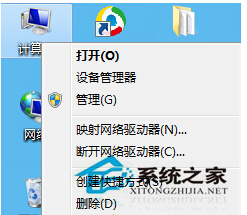
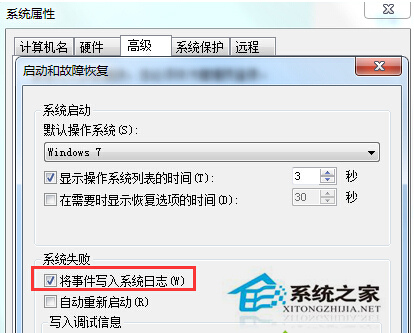
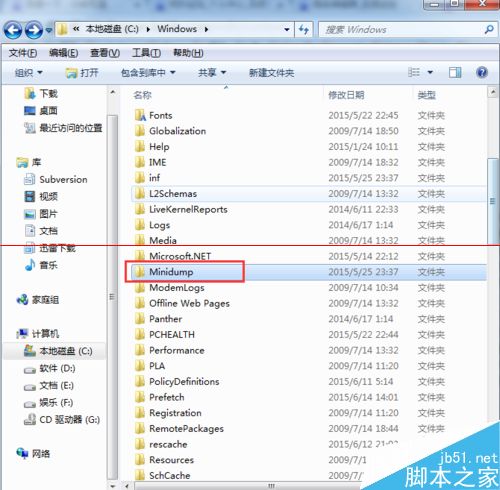
藍畫面 (BSOD) 後系統會自動寫入記憶體傾印檔 (.dmp) 至 C:\Windows\Minidump 或 C:\Windows\MEMORY.DMP。若資料夾為空,需啟用「將事件寫入系統記錄」。
.dmp
C:\Windows\Minidump
C:\Windows\MEMORY.DMP
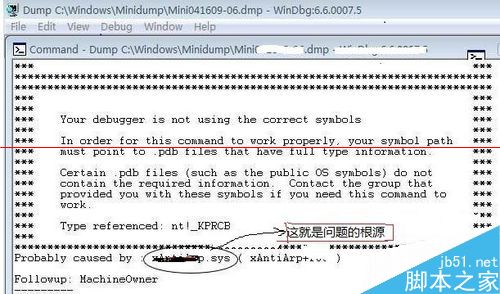
Probably caused by :
據此更新或移除對應驅動程式可解決多數藍畫面問題。
Win7 字體模糊不清?ClearType 文字微調嚮導一鍵優化 LCD 顯示
Win7 清除多餘通知區域圖示:刪除登錄檔 IconStreams 並重啟 Explorer
Win7 關閉視覺效果提升效能:調整為最佳效能模式完整教學
Windows 7 清除遊戲記錄與快取檔案,保護隱私釋放空間
Windows 7 UAC 詳細解析:四級防護與最佳設定建議
開機按 F1 才能進入系統?BIOS 設定錯誤完整排除指南
F-Secure 報告:Win 7 時代 XP 系統成駭客首選攻擊目標
Windows 7 隱藏實用小功能:修復光碟、問題步驟記錄器、系統還原、耗電報告