想在 Mac 上跑 Windows 7 玩遊戲、用專屬軟體?Apple 官方工具 Boot Camp 助手 可引導你完成分區、安裝、驅動部署全流程。本教學以 macOS 與 Windows 7 安裝媒體為例,詳述關鍵步驟與注意事項。
前置準備
- Intel 晶片 Mac(Apple Silicon M 系列不支援 Boot Camp)。
- Windows 7 安裝 ISO 或 DVD(建議 SP1 版本,含 x64 版)。
- macOS 安裝媒體 或 Boot Camp 支援軟體(含 Windows 驅動程式)。
- 至少 64 GB 可用磁碟空間(建議 100 GB 以上)。
- 備份重要資料!分區操作有風險。
操作流程
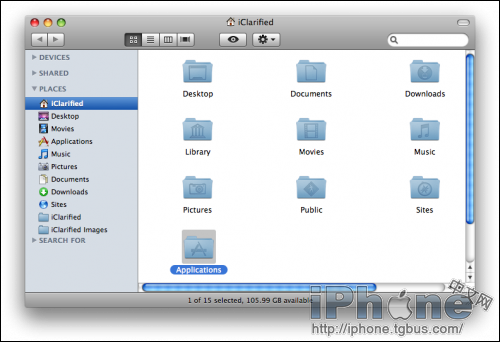
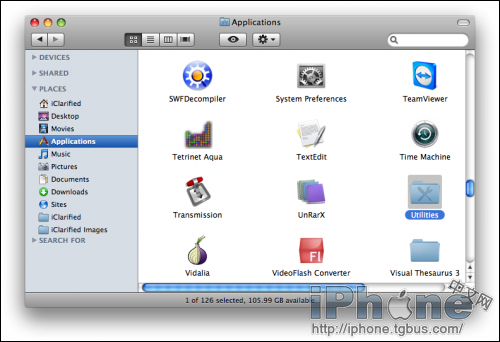
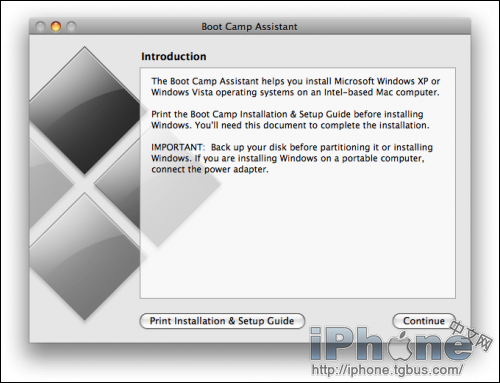
- 開啟「Boot Camp 助手」(應用程式 → 工具程式)。
- 勾選所有任務:「建立安裝磁碟」、「下載最新 Windows 支援軟體」、「安裝 Windows 7」。
- 選擇 Windows 7 ISO 檔案,設定 Windows 分區大小(拖曳滑桿或輸入數值)。
- 點擊「安裝」,Mac 會重新啟動並進入 Windows 安裝程式。
- Windows 安裝介面:選擇語言、時間、鍵盤 → 「立即安裝」 → 輸入產品金鑰(可跳過) → 選擇「自訂:僅安裝 Windows (進階)」 → 選取標示為「BOOTCAMP」的分區 → 點擊「格式化」 → 確定 → 下一步。
- Windows 安裝完成並進入桌面後,會自動啟動 Boot Camp 安裝程式,安裝顯示卡、聲音、鍵盤、觸控板、藍牙等驅動。依提示完成並重新啟動。
- 切換系統:開機時按住 Option (Alt) 鍵,選擇 macOS 或 Windows 啟動磁碟。
常見問題與提醒
- Windows 7 已停止支援(2020/01/14),建議改裝 Windows 10/11 以獲得安全更新。
- 若安裝過程卡在「正在啟動 Windows」,嘗試在 BIOS/UEFI 中關閉 Secure Boot,或使用較新的 Windows 映像。
- Boot Camp 分區格式為 NTFS,macOS 下預設唯讀,需第三方工具(如 Paragon NTFS、Tuxera NTFS)寫入。
- 觸控板、鍵盤背光、功能鍵需 Boot Camp 驅動才能完整運作。
替代方案
若不想重開機切換,可考慮虛擬機(Parallels Desktop、VMware Fusion、VirtualBox)直接在 macOS 視窗中跑 Windows,效能略遜但切換無縫。
小結
Boot Camp 是 Mac 上安裝 Windows 最原生、效能最好的方式。依照精靈步驟操作,備份資料、預留空間、耐心等待驅動安裝,即可擁有雙系統體驗。立即嘗試,讓你的 Mac 更多元!