8024402F = WU_E_PT_ECP_SUCCEEDED_WITH_ERRORS,Windows Update 服務連線過程中發生錯誤,常見於連線逾時、伺服器忙碌、本地網路/安全軟體干擾、系統檔案損毀。
| 成因 | 現象 | 解決方案 |
|---|---|---|
| 1. 網路連線忙碌/高峰期 | Windows Update 伺服器請求過多、本地頻寬不足 | 關閉 Windows Update → 重開機 → 避開上網高峰時段(深夜/清晨)重試 |
| 2. 背景監控程式阻擋 | 防火牆、反間諜軟體、Web 加速器、網路安全/防毒軟體、Proxy 伺服器攔截更新連線 | 執行 Windows Update 前**暫時關閉**上述第三方安全軟體;若使用 Proxy → 取消 Proxy 設定 |
| 3. 系統服務/檔案損毀 | Cryptographic Services 異常、相關系統檔案遺失/損毀 | 以系統管理員身分執行命令提示字元 → sfc /scannow 修復系統檔案 |
sfc /scannow(注意 sfc 後有空格)→ Enter。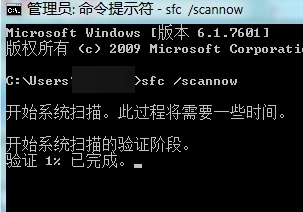
net stop wuauservren %windir%\SoftwareDistribution SoftwareDistribution.oldnet start wuauservWindows 7 已於 2020/01/14 停止主流支援,Windows Update 僅提供擴充安全性更新 (ESU) 給付費企業授權。一般用戶將無法獲得新安全性更新,**強烈建議升級至 Windows 10/11**。