Windows XP Windows 7 Windows 2003 Windows Vista Windows 綜合教學 Linux 系統教學
Windows 10 Windows 8 Windows 2008 Windows NT Windows Server 電腦軟體教學

Windows 7 移除登入畫面版本 Logo 資訊:Resource Hacker 修改 basebrd.dll.mui 系統檔案教學

編輯:Windows 7 系統介紹

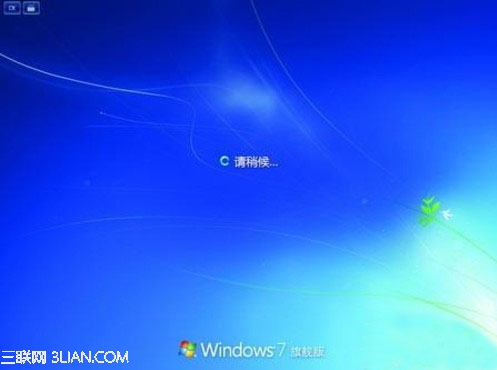
Windows 7 登入畫面右下角預設顯示版本資訊 (如「Windows 7 旗艦版」)。追求極簡介面的使用者可透過修改系統資源檔 basebrd.dll.mui 將 Logo 替換為透明圖片,達到隱藏效果。

前置準備

  • 系統檔案路徑:C:\Windows\Branding\Basebrd\zh-TW\basebrd.dll.mui (繁體中文系統,簡體為 zh-CN)。
  • 工具:Resource Hacker (ResHacker) 綠色版,可從官網或可信來源下載。
  • 替換圖片:準備 350×50 像素 的透明 PNG/BMP 或純白圖片。

操作步驟

  1. 備份原檔:複製 basebrd.dll.mui 至桌面。
  2. 以系統管理員身分執行 Resource Hacker,拖入桌面的 basebrd.dll.mui。
  3. 展開「Bitmap 位圖」> 120 → 2052 (對應 350×50 Logo) > 右鍵 >「Replace Resource 替換資源」。
    Resource Hacker 替換位圖
  4. 選擇準備好的透明圖片 >「Replace」。
  5. 同樣處理 1120 → 2052 與 2120 → 2052 (其他尺寸/語系備份資源)。
  6. 「File」>「Save」儲存修改後的 basebrd.dll.mui 至桌面。
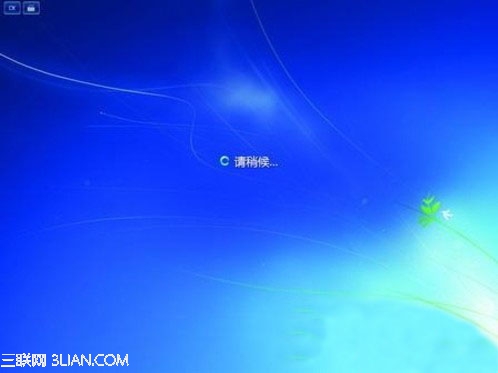
    修改後登入畫面效果

替換系統檔案 (需取得 TrustedInstaller 權限)

  1. 下載並匯入「取得系統檔案擁有權」登錄表檔 (TakeOwnership.reg),右鍵選單將出現「Take Ownership」。
  2. 右鍵原系統檔 C:\Windows\Branding\Basebrd\zh-TW\basebrd.dll.mui >「Take Ownership」取得權限。
  3. 將桌面修改後的檔案複製覆蓋原檔。
  4. 重開機,登入畫面版本 Logo 已隱藏 (顯示透明/空白)。

風險與恢復

  • 修改系統核心資源檔,Windows Update 可能覆蓋還原,需重複操作。
  • 若導致登入畫面異常 (黑畫面、閃爍),進入安全模式還原備份檔案。
  • 建立系統還原點後再操作。

極簡主義者的專屬登入畫面,透過 Resource Hacker 精準修改系統資源實現。

Copyright © Windows教程網 All Rights Reserved