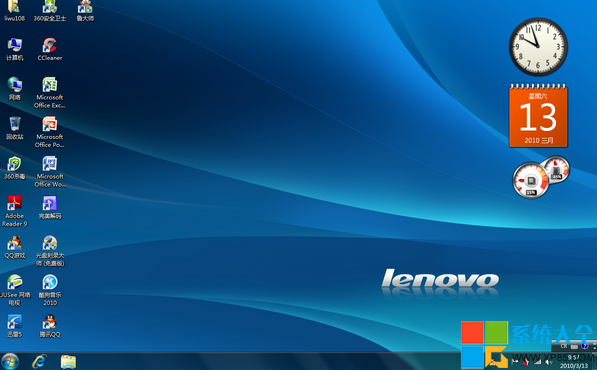
Windows 7 Aero 玻璃特效無法啟用,常見原因包括版本限制、驅動程式、效能設定、色深設定等。依序排除:
排除步驟
- 確認版本:家庭基本版/入門版不支援 Aero,需家庭進階版、專業版、企業版、旗艦版。
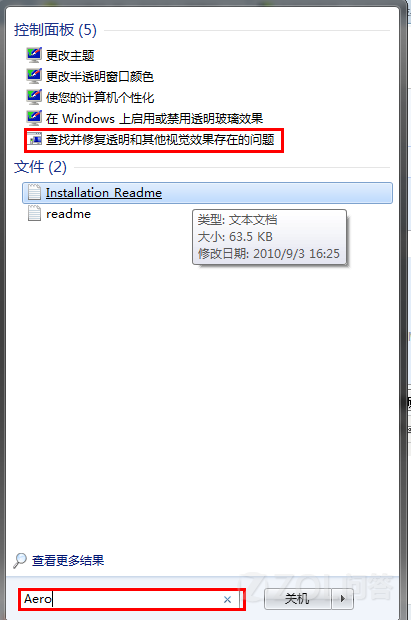
- 系統自動修復:開始搜尋「Aero」 → 點擊第 5 項「尋找並修復 Aero 桌面特效問題」 → 讓系統自動診斷修復。
- 更新顯示卡驅動:至 NVIDIA/AMD/Intel 官網下載最新驅動安裝,重開機後重試。
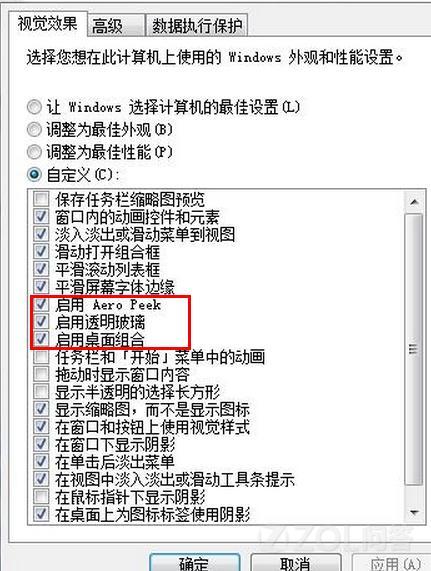
- 檢查視覺效果設定:電腦右鍵 → 「內容」 → 「進階系統設定」 → 「進階」→「效能」→「設定」 → 勾選「啟用透明玻璃」、「啟用桌面佈景主題」、「使用視覺樣式」等項目。
- 確認色深為 32 位元:桌面右鍵 → 「螢幕解析度」 → 「進階設定」 → 「列出所有模式」 → 選擇「True Color (32 bit)」模式。16 位元色深無法啟用 Aero。
依序執行上述五步,絕大多數 Aero 無法啟用問題可解決;若硬體確實不支援(如舊款整合顯晶片),則無法強制開啟。